
Can You Transfer ChatGPT Chats to Another Account? What Actually Works (2026)
ChatGPT can't merge accounts or move chats into another account's sidebar. Here's what actually works in 2026: changing your email instead, the export-and-upload route, shared links for the chats you still need, the one-way Business merge, and how to carry your memory over.

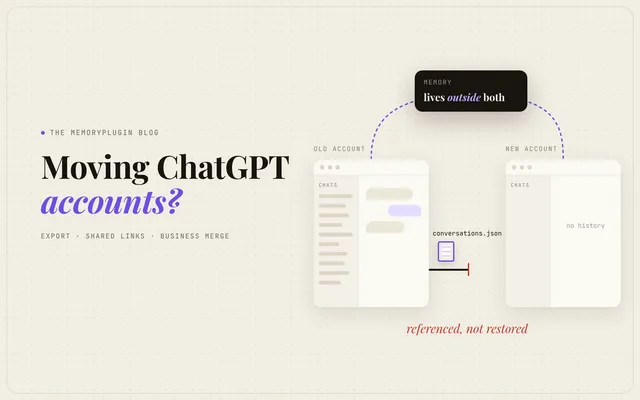
Quick answer: No. ChatGPT can't merge accounts or move chats into another account's history. You can change the email on your existing account, export your data and upload conversations.json to the new account as a reference file, continue key chats through shared links, or merge a personal workspace into ChatGPT Business on the same account.
In OpenAI's words, ChatGPT "does not support fully merging accounts or moving conversations from one account's chat history into another account's chat history." The email change is self-serve on the web for most personal accounts. Memories, custom instructions, GPTs and subscriptions don't carry over in the export route. (Checked against OpenAI's help center, October 2026.)
People ask how to transfer ChatGPT chats to another account in every phrasing Google's autocomplete can hold: move, transfer, can I, can you, one chat. Reddit asks it for every reason you'd expect: a new email, a graduation, a job change, a Business plan bought by accident.
OpenAI's answer is short, and it has changed. One thing Reddit called impossible a year ago now takes a minute, and the official export route does less than most guides suggest. Here's what each path actually moves, in the order I'd try them.
Can you transfer ChatGPT chats to another account? It depends on why
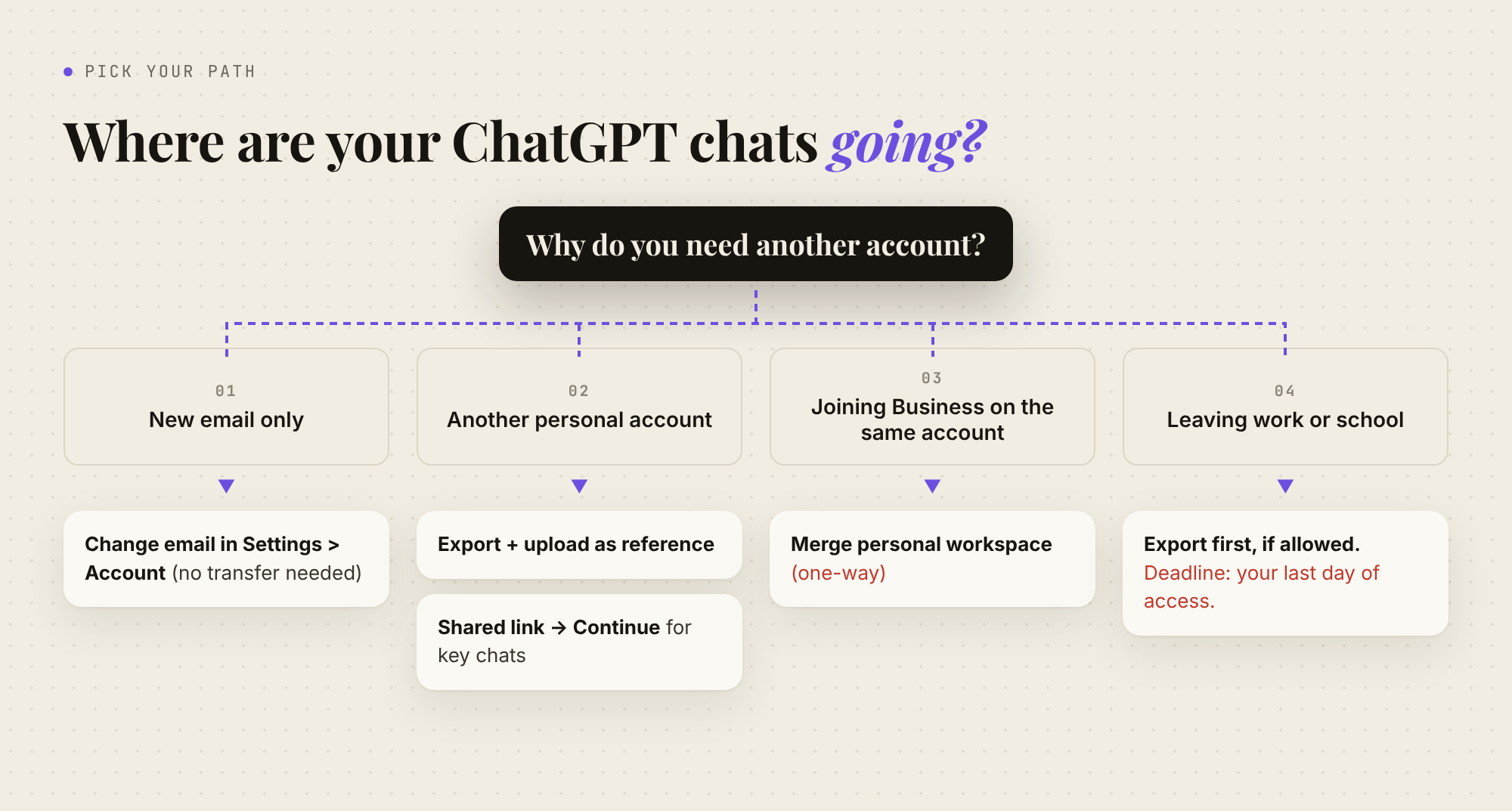
Most of the confusion comes from treating four different situations as one. Start by finding yours:
| Your situation | Best native path | Chats land in the new sidebar? | Memories move? |
|---|---|---|---|
| You just want a different login email | Change the email on your existing account | Nothing moves; nothing needs to | Yes, nothing changes |
| Personal account to another personal account | Export, then upload as reference; shared links for key chats | Only chats you continue via shared link | No |
| Personal account to ChatGPT Business (same account) | Merge data from your personal workspace | Yes | Supported saved memories, yes |
| Leaving a Business, Enterprise or Edu workspace | Edu: export if your admin allows it. Business/Enterprise: no self-service export | No | No |
Can I change my ChatGPT email instead of making a new account?
If your reason is "I want to stop using this email" (a degoogled life, an old work address, an alias), you probably don't need a new account at all.
For a long time, people believed you couldn't change the email on a ChatGPT account. One r/ChatGPT post from October 2025 starts from exactly that premise: "since ChatGPT doesn't allow changing the email address on an existing account, I'm now forced to create a new one." That isn't true for most personal accounts now. OpenAI's email change article now describes a self-serve flow:
- Sign in to ChatGPT on the web (the iOS and Android apps can't do this).
- Go to Settings > Account and click your email address.
- Enter the new address and complete verification. You'll be signed out; sign back in with the new email.
The conditions matter:
- You need access to the current inbox. Without it, OpenAI says the change isn't supported, "including through OpenAI Support."
- Social or phone login? If you signed up with Google, Apple or Microsoft, add a password first. If you signed up with only a phone number, add an email first.
- Not for managed accounts. If you've ever signed in with SSO, belong to an Enterprise workspace or organization, or your email domain is verified by a company, you can't self-serve; members of shared workspaces generally go through their admin. Moving from a work email to a personal one usually fails for that reason.
- Limits: two changes per 24 hours, 20 over the account's lifetime, and you can't switch to an address that already has an OpenAI account. Changing your email also doesn't free up the old address for another account, and because ChatGPT and the API Platform share the same login, the change applies to both.
OpenAI says the change "does not affect the contents of your account": chat history, Projects, custom GPTs, workspace membership and settings all stay. If this path is open to you, take it. Everything below is a workaround by comparison.
How do I transfer ChatGPT chats to another account? (export + upload)
If you genuinely need a second account, this is OpenAI's documented way to transfer ChatGPT history to another account (transfer guide, export guide).
1. Export from the old account. Go to Settings > Data controls > Export data > Export, then Confirm export. If you can't sign in anymore, OpenAI's Privacy Portal has a "Download my data" request instead (linked from the export guide).
2. Download it promptly. The export can take up to 7 days to arrive, and the download link expires 24 hours after you get it. Download it while signed in to the account that requested it. An export can't bring back chats you've already deleted.
3. Find the conversation file. Unzip it and look for conversations.json. Larger exports split into numbered conversation files.
4. Upload it in the new account. Sign in to the personal account you're keeping, start a new conversation, and upload the JSON. If it's too big, upload the numbered files separately, split the JSON, or upload only the conversations you need.
Then read OpenAI's limitations list. It's the most honest part of the page. Uploading the export does not:
- add old conversations to your chat history,
- create separate chats for each exported conversation,
- restore your original sidebar,
- combine the two accounts,
- move a Plus or Pro subscription or workspace membership, or
- transfer custom instructions, memories, GPTs, files, or other settings.
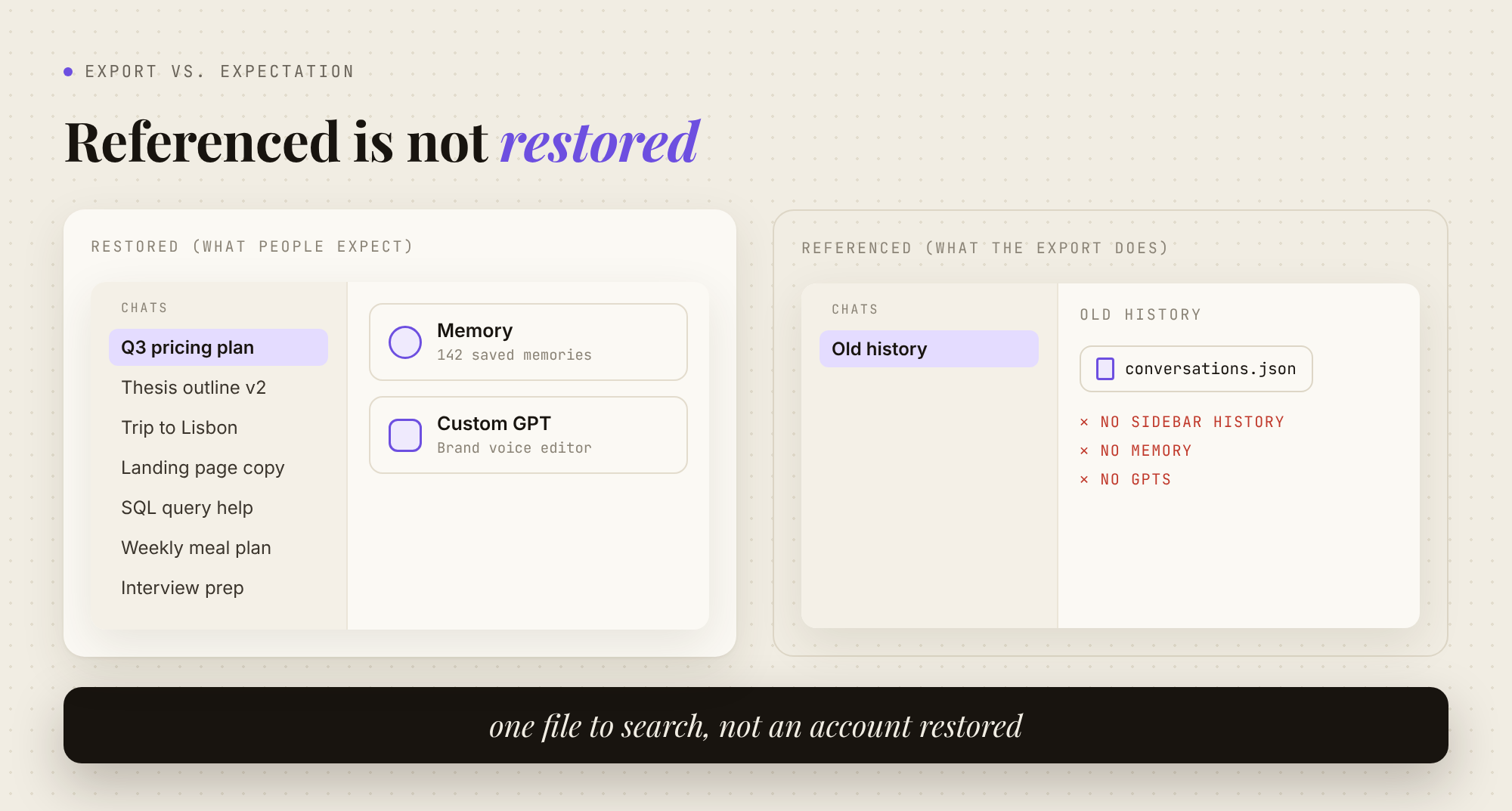
Referenced is not restored
The distinction I keep coming back to here: referenced is not restored. After the upload, your old history is a file that one conversation can read. It isn't your history anymore in any working sense. It doesn't show up in search or the sidebar, and future chats don't know it exists. It's a box of papers on the desk of one chat.
That's useful for "what did I conclude about X last spring?" It's useless for picking up twenty threads where you left them. Community tools that split conversations.json into per-chat files or convert it to Markdown or PDF hit the same wall: they make the archive readable. They can't put it back. (Claude has the same problem; see how to copy an entire Claude conversation and use it later.)
How do I move one ChatGPT chat to another account?
Most guides skip this one. If you want to move ChatGPT chats from one account to another and keep working in them, a shared link is the only native way to get a chat that's actually continuable in the new account.
OpenAI's shared links article says it directly: "Continuing a shared conversation creates a separate, private conversation in the recipient's account." So:
- In the old account, open the chat and select Share > Create link.
- Open the link while signed in to the new account and continue the conversation.
- Back in the old account, delete the link under Settings > Data controls > Shared links > Manage.
Step three isn't optional. Anyone with a personal-account link can open it, there's no expiry setting, and links can be forwarded. Deleting the link doesn't delete the copy you continued in the new account. Also know what you're getting: a snapshot as of when the link was created or updated, and images and files may not all come with it.
This doesn't scale to five hundred chats. For the ten conversations you're still actively working in, though, it beats a reference file. One caveat for work accounts: links created in a Business, Enterprise or Edu workspace open only for members of that same workspace, so this won't move anything out of a workspace.
Can I transfer my personal ChatGPT to Business?
If you're joining a Business workspace with the same account, there is a real migration. Per OpenAI's migration guide, switch to the Business workspace, go to Settings > Data Controls, and select Merge next to Merge data from your personal workspace.
| Moves into Business | Doesn't move, or needs work |
|---|---|
| Supported conversations from cloud history | You can't pick individual chats; it's all or nothing |
| Custom GPTs you created, with instructions and knowledge files | GPTs other people made; public share settings need redoing |
| Your Projects, with settings and files | Projects owned by others that you participate in |
| Library files, supported automations | Sites, custom plugins, custom connectors |
| Saved memories that apply across chats | Project-scoped memories; Memory isn't switched on for you |
| Custom instructions and profile details (unless you've already set personalization in the workspace; existing settings win) | Memory and tool settings |
Read the fine print before you click:
- It's one-way. There's no undo that moves content back to your personal workspace. Your personal workspace is deactivated, not deleted. If the Business workspace is later deactivated, OpenAI's flow can reactivate the original personal workspace and its data. Business content stays behind.
- Some older or long-running conversations may not be retrievable afterward, and unsupported content doesn't transfer. Back up first.
- Your employer controls it afterward. "If you leave, are removed, or lose access to the destination workspace, you may also lose access to that content."
- Your personal plan gets cancelled. An active personal subscription is cancelled and the unused part refunded, except App Store and Google Play subscriptions, which you cancel yourself.
- You don't have to merge, in Business. You can keep the personal workspace separate and switch between the two. Enterprise onboarding may require the merge.
OpenAI's export article adds a line worth acting on: if you plan to merge, "request, download, and check your data export before the personal workspace is removed." Business workspaces have no self-service export, so a merge without a backup leaves your history entirely under the workspace's control.
I made the same point in how to switch Claude accounts without losing your chats, where Anthropic's move into a Team workspace is also one-way (step-by-step in how to move from a personal Claude account to a Team account). Merging is convenient. It also hands your personal archive to an organization.
Can I move ChatGPT Business chats to a personal account?
This direction has the fewest options, and people usually find that out too late.
- Business and Enterprise: OpenAI says self-service export "is not available" in these workspaces. Contact the workspace owner about organization-managed data access. One r/OpenAI user asked how to go back to an individual plan and found they couldn't revert the Business account or export their chat history.
- Edu: members can export their own data only if an admin has enabled it and the workspace has no data residency configuration (Edu export guide). Export is off by default. A recent graduate on r/ChatGPT ran into exactly this: "the export button isn't available on my Edu account."
- Accidental Business sign-ups: one r/ChatGPT poster "Lost all my ChatGPT conversations because I accidentally subscribed to the Business plan," and reports that support's answer was to "re-subscribe and manually copy/paste your chats." I can't verify their account from the outside, but the export rules above explain why there was no button to press.
The practical rule: the deadline is your last day of access, not the day you decide to move. And to be clear, work chats are usually your employer's data. Ask before copying them anywhere, and keep your personal archive somewhere that was never theirs.
What doesn't transfer to a new ChatGPT account?
Between personal accounts, these stay behind whichever route you take:
| Left behind | What to do before you switch |
|---|---|
| Memory | Open Settings > Personalization > Memory and copy what's shown (a memory summary on newer accounts, or your saved-memories list), or ask ChatGPT to write out what it remembers about you. Paste the essentials into the new account. Note OpenAI's own caveat: the memory summary "does not necessarily include every detail." |
| Custom instructions | Copy them from Personalization and paste them into the new account. |
| Custom GPTs | Copy each GPT's instructions and download its knowledge files, then rebuild it. |
| Projects | Note each project's instructions and files; recreate the ones you still use. |
| Plus or Pro subscription | Doesn't transfer. Cancel on the old account so you aren't paying twice, and subscribe on the new one. |
The memory row is the one people regret. Chats are bulky but replaceable; you can always re-read an export. Memory is the distilled version: your preferences, your projects, the facts you'd otherwise retype in every new chat. And the export route doesn't carry it. MemoryPlugin's free ChatGPT memory export tool cleans and dedupes a pasted memory list in your browser if you want a tidy copy to bring over. I covered the cross-tool version of this in how to transfer ChatGPT memory to Claude, Gemini, or a new chat.
Where MemoryPlugin fits
MemoryPlugin is the memory layer I build, so here's exactly what it does here, no more. It doesn't merge two ChatGPT accounts, and it can't put chats back into a ChatGPT sidebar. Nothing can. What it changes is where your history and memory live: outside any one account, so a new account doesn't start from zero.
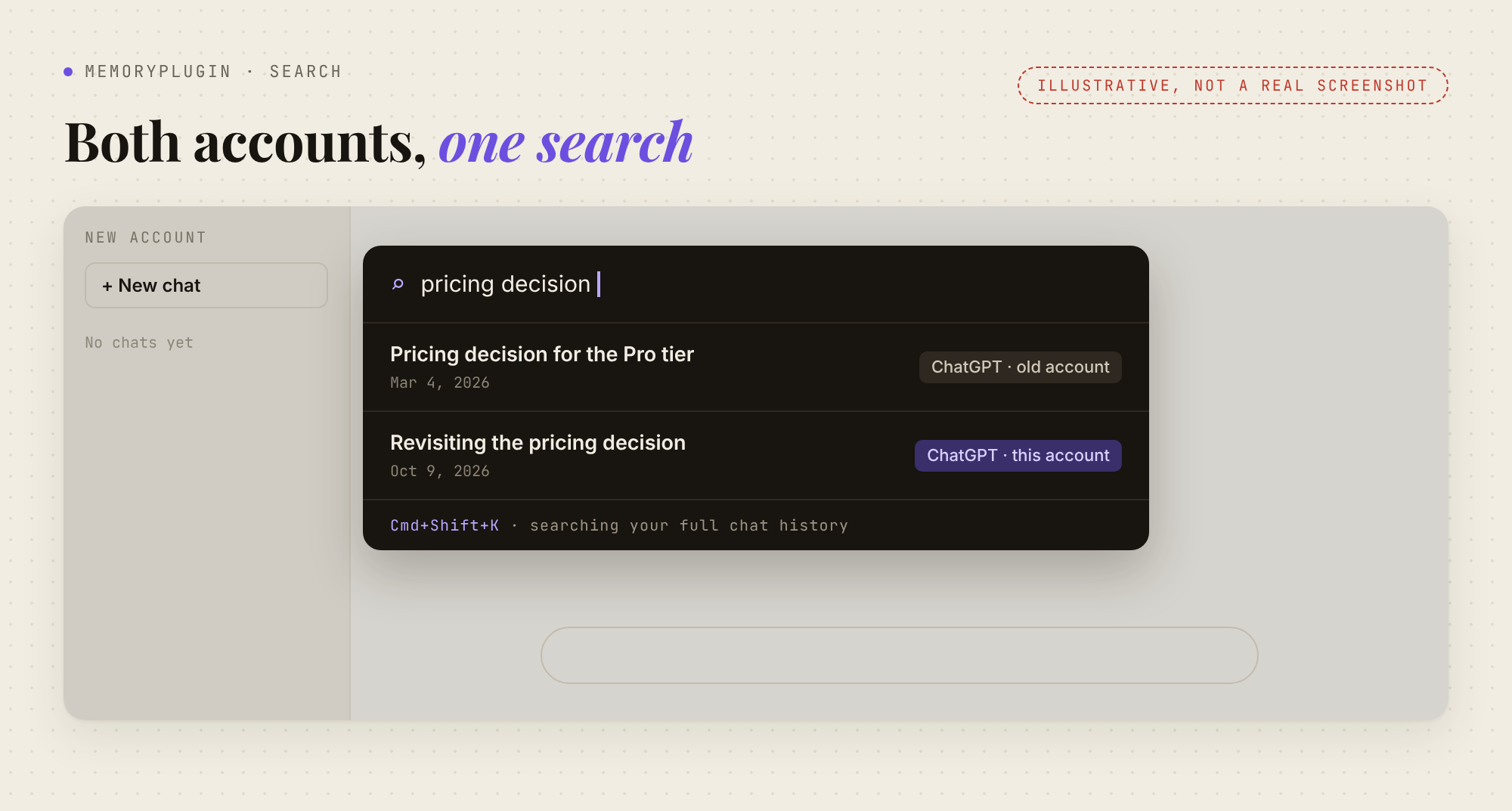
Your old chats, searchable and recallable from the new account. You can upload the same ChatGPT export ZIP (or the conversations.json files) to MemoryPlugin's Chat History. If you can still sign in to the old account, the browser extension can sync it directly from the extension's Sync tab instead. After that, press Cmd+Shift+K (Ctrl+Shift+K on Windows) on ChatGPT in the new account to search everything by keyword or meaning, open a full transcript, or (on Pro) summarize a thread. With Chat History Recall on, ChatGPT pulls relevant details from your old conversations into the new chat itself. That's the difference from the reference upload: the history follows you into every chat, not one.
Your memory, carried over once and kept current. The extension adds a Sync Memories button to the ChatGPT screen that lists your saved memories and copies those memories into MemoryPlugin. It's a copy, not a move, and re-running it doesn't create duplicates. The extension is signed in as you, not as a ChatGPT account, so the same memory is injected whichever ChatGPT account you're in. More on how it works in ChatGPT: MemoryPlugin is now available for ChatGPT. It's in Claude, Gemini and the other supported tools too.
Both accounts, at the same time. If you're keeping a personal account next to a work one, the old one doesn't have to become a dead end. I wrote about the "two accounts, one search box" setup in how to see all your AI chats in one place. And if your "new account" is really a new tool, see how to switch from ChatGPT to Claude without losing your memory.
Which plan this needs
One detail matters here. On Core ($89/year), chat history import covers up to 500 searchable chats from a single account on one platform. If you want history from two ChatGPT accounts searchable together, that's Pro ($180/year): unlimited chat history across all your accounts and platforms, plus conversation summaries. Unlimited memories work on both plans. Prices are as listed on the pricing page in October 2026. Every subscription starts with a 7-day free trial, and there's a 14-day refund after that if it isn't a fit.
If you're about to lose access to an account, do the native steps first: request the export today. Then start the free trial, sync your memories while the old account still opens, and upload the export when it arrives.
The order I'd do it in
- Try changing the email first. If it works, stop here.
- Request the export now. It can take a week, and the link dies after 24 hours.
- Copy your memory and custom instructions while you can still open the old account.
- Share-link the handful of chats you're still working in and continue them in the new account. Then delete the links.
- Upload the export wherever you'll actually use it: as a reference file in ChatGPT, into a memory layer, or both.
- Cancel the old subscription so you don't pay twice.
FAQ
Can you merge two ChatGPT accounts?
No. OpenAI says ChatGPT doesn't support fully merging accounts or moving one account's chat history into another's. The closest thing is a workspace merge, not an account merge: on the same account, you can merge your personal workspace into a ChatGPT Business workspace.
Can I change my ChatGPT email instead?
Usually, yes. On the web, go to Settings > Account and click your email, as long as you can still open your current inbox and the account isn't managed by SSO or a company domain. Your chats, Projects and GPTs stay.
Can I transfer ChatGPT Plus to another account?
No. Subscriptions don't transfer. Cancel Plus on the old account (through the App Store or Google Play if that's where you bought it) and subscribe on the new one. If your real goal is a new email, change the email on the existing account instead and keep the subscription.
Do ChatGPT memories transfer to a new account?
Not between personal accounts. OpenAI's transfer guide lists memories, custom instructions and GPTs among the things that don't move. Copy them by hand, or keep them in an external memory that works in any account. A personal-to-Business merge is the exception: supported saved memories that apply across chats transfer.
Can I move my chats from ChatGPT Business to a personal account?
Not with a self-service tool. Business and Enterprise workspaces have no self-service export, and workspace share links only open for members of that workspace. Ask your workspace owner, and follow your company's data policy.
How long does a ChatGPT data export take?
Up to 7 days, according to OpenAI. The email or SMS includes a download link that expires 24 hours after you receive it, so download it promptly while signed in to the same account that requested it.
Can I transfer a ChatGPT project or custom GPT to another account?
Not between personal accounts. Uploading an export doesn't recreate Projects or GPTs; you rebuild them from their instructions and files. Merging a personal workspace into Business does carry your own Projects and GPTs into that workspace.