
How to Move From a Personal Claude Account to a Team Account
Moving your personal Claude account to your company’s Team workspace is not just an account switch. Here’s what transfers, what stays behind, and what to know before you close your personal account.

You have been using Claude on your own account for months. Your chats are there. Your Projects are there. Claude has learned your preferences.
Then your company moves to Claude Team. Claude gives you an organization account alongside your existing personal account, and you can choose to keep both or migrate the personal account into the organization.
Those two options have very different consequences, and one of them cannot be undone.
This guide walks through both, what moves, what gets left behind, and what to do with your context before you make the switch.
What Happens When You Join a Claude Team Organization
Joining a Claude Team organization does not automatically move your personal Claude account.
Claude gives you a separate organization account, and your personal account stays where it is. You can switch between the two from the account menu, running your personal Claude and your company's workspace side by side.
The catch is that the two accounts do not share context. If you want everything in one place, Claude gives you a migration option instead. There are two ways to handle the move.
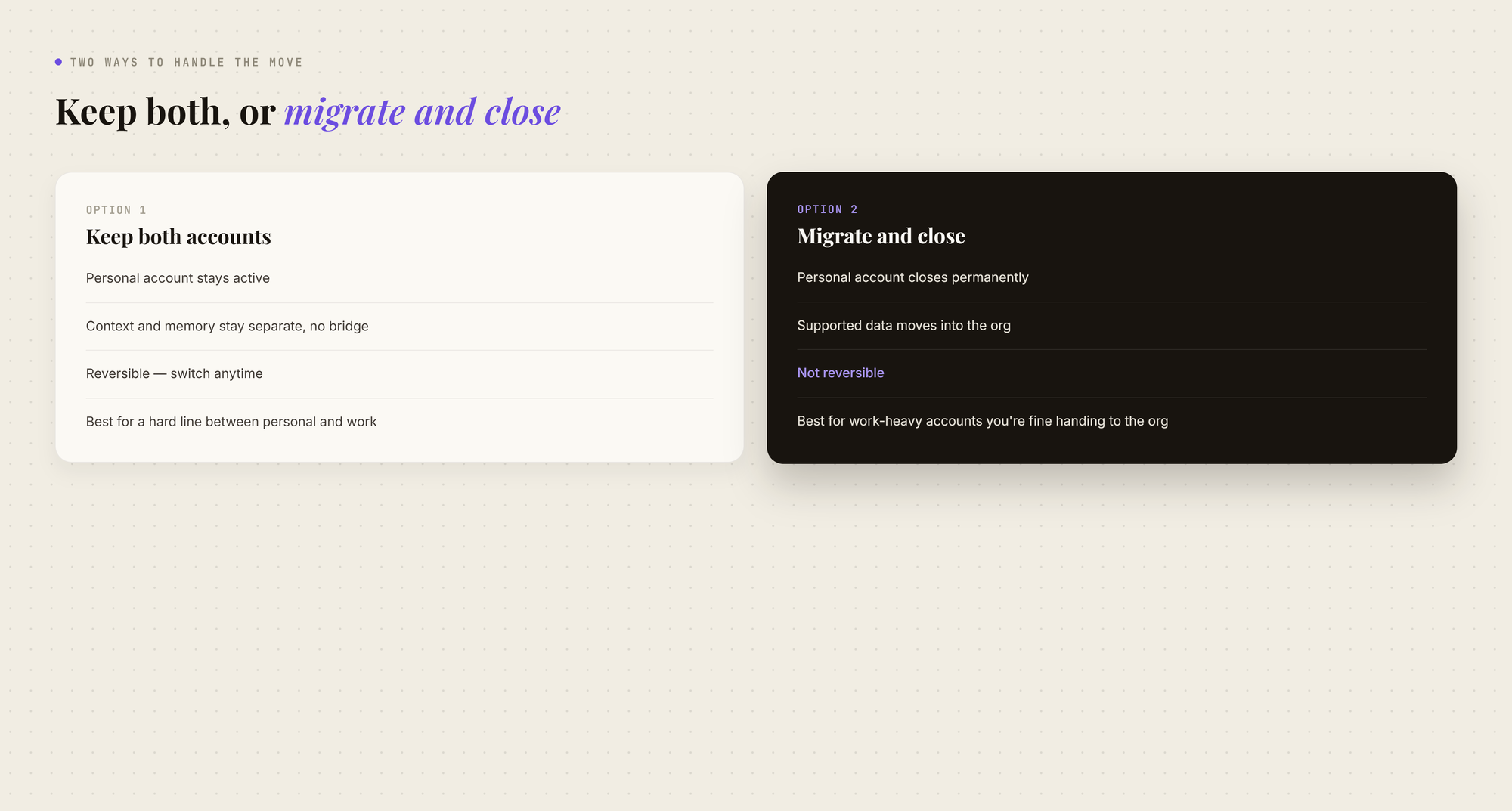
Option 1: Keep Your Personal and Team Accounts Separate
This is the safer choice if your personal Claude account contains a mix of personal and work content.
Both accounts stay active. Your personal account stays intact, and your organization account starts with the workspace your company set up.
The catch is that your memory stays separate too. What Claude remembers in your personal account does not automatically become available in your organization account, and the same is true for your conversations and Projects. There is no bridge between the two.
That is fine if you want a hard separation between personal and work. It gets frustrating if you want the context you built up over months to follow you into the new organization account.
Option 2: Move Your Personal Account Into the Organization
Claude also lets you close the personal account and move its eligible data into the organization. This is a real migration, not just a switch between accounts.
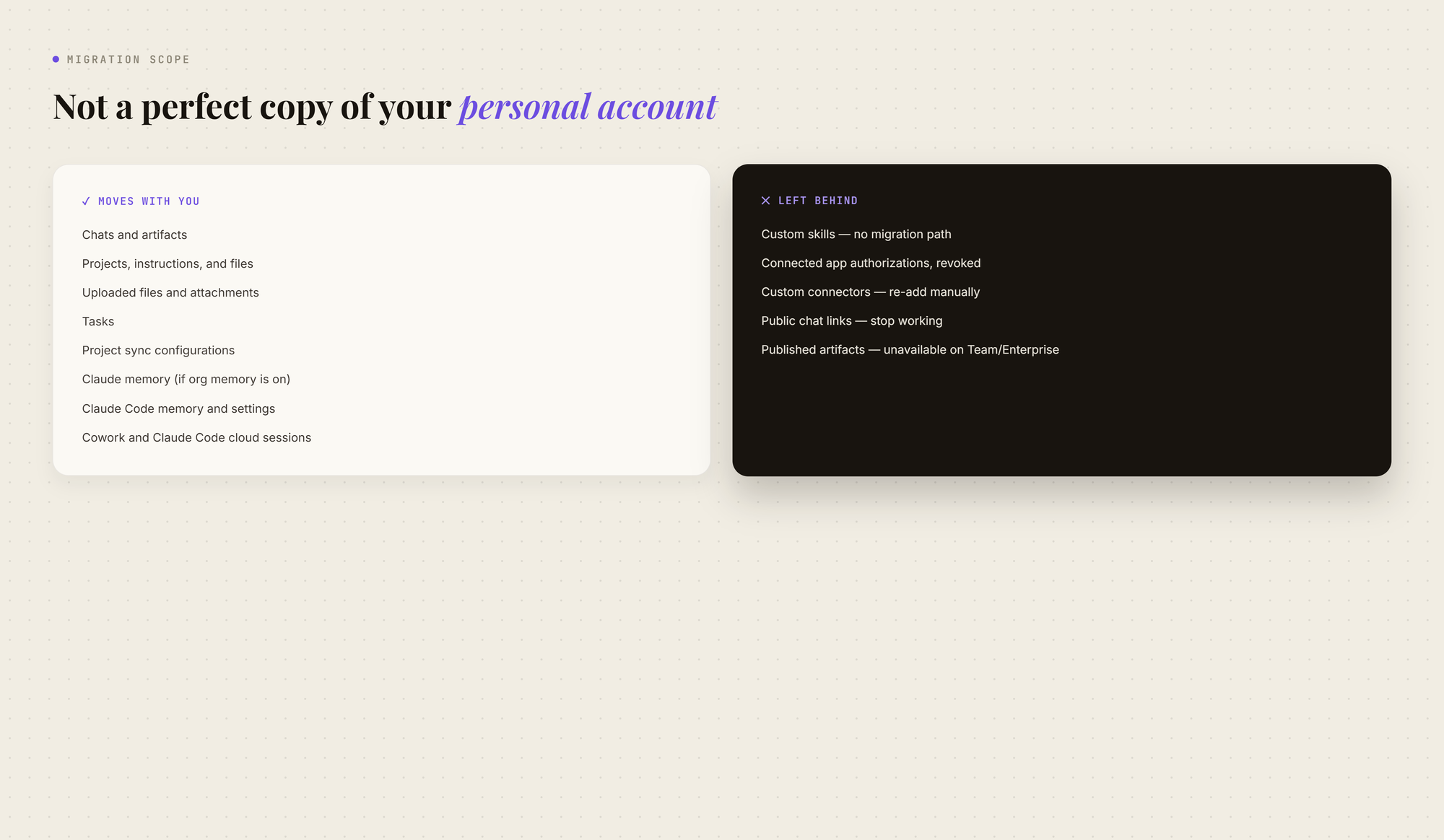
Your chats, Projects, files, tasks, and eligible Claude memory move into the organization workspace. Some personal settings and Claude Code memory can move too.
The important part is what happens afterward.
One-way move: once your data moves into the organization, there is no supported way to reverse it. Decide before you click, not after.
What Moves With Your Account Vs What Left Behind
How to Migrate Your Claude Account
Where you start depends on your plan. On Team, the migration choice is offered when you accept the invitation, and you can also start it later from Settings > Account. On Enterprise, there is no join-time prompt, so you begin from Settings > Account and close your personal account there.
- Join the organization: Accept your organization's Claude invitation. If you already have a personal Claude account using the same email address, Claude gives you options for how to handle it.
- Choose between two accounts or one: Keep both accounts and switch between them, or use your organization account only, which closes your personal account and asks whether you want to bring the data with you or delete it.
- Choose "Bring your data with you": Pick this if you want your existing Claude work moved into the organization. Claude migrates the supported chats, Projects, files, tasks, memory, and other eligible data.
- Review what you are losing: Before confirming, check your custom skills, public links, published artifacts, connected apps, and custom connectors. These are the things most likely to need manual work afterward.
- Confirm the migration: Your personal account closes, and the eligible data moves into the organization.
What Happens to Your Claude Memory
This is the part worth paying attention to, because what happens to your memory depends on the path you choose.
Either way, your built-up personal context does not end up current and available inside the account you will be working in every day. That gap is built into how the accounts are separated, and it is the reason this decision deserves more thought than "keep both" or "migrate everything" first suggests.
What Happens to Your Pro or Max Subscription
Your individual subscription is handled differently depending on where you bought it.
Keep Your Context When Your Accounts Stay Separate With MemoryPlugin
Keeping both Claude accounts solves the account problem. It does not solve the context problem.
Your personal Claude account has its own conversations and memory. Your Team account has its own workspace and context. Claude does not merge the two.
That is where a separate memory layer helps.
Instead of moving your personal account into the organization, you can keep both accounts separate and use MemoryPlugin to store the context you want to carry between them.
Before You Migrate: Keep Your Claude History
Before making the switch, export your personal Claude data from Settings > Privacy > Export data.
MemoryPlugin supports importing Claude's conversations.json export into Chat History, giving you a separate, searchable copy of your past conversations.
This means your history does not depend entirely on what happens to your Claude account.
Keep Work and Personal Context Separate
MemoryPlugin's buckets let you organize memories by context.
For example:
- Work: Project details, decisions, and preferences you want available while using Team Claude.
- Personal: Personal context you want kept separate from work.
You choose the relevant bucket when using your AI tools, rather than keeping everything in one memory pool.
Keep Your Context When You Switch Accounts
Your personal and Team Claude accounts remain separate.
MemoryPlugin keeps the reusable context outside both accounts, so you can use the same memories when working in either one and across other supported AI tools.
For Claude, MemoryPlugin supports a Remote MCP integration that lets Claude retrieve relevant stored memories during conversations. Its browser extension can also sync supported Claude conversations to Chat History.
This gives you two separate layers:
Memory: Reusable facts, preferences, and context.
Chat History: Past conversations you can search when you need the original discussion.
Claude Migration vs. MemoryPlugin
The difference is simple:
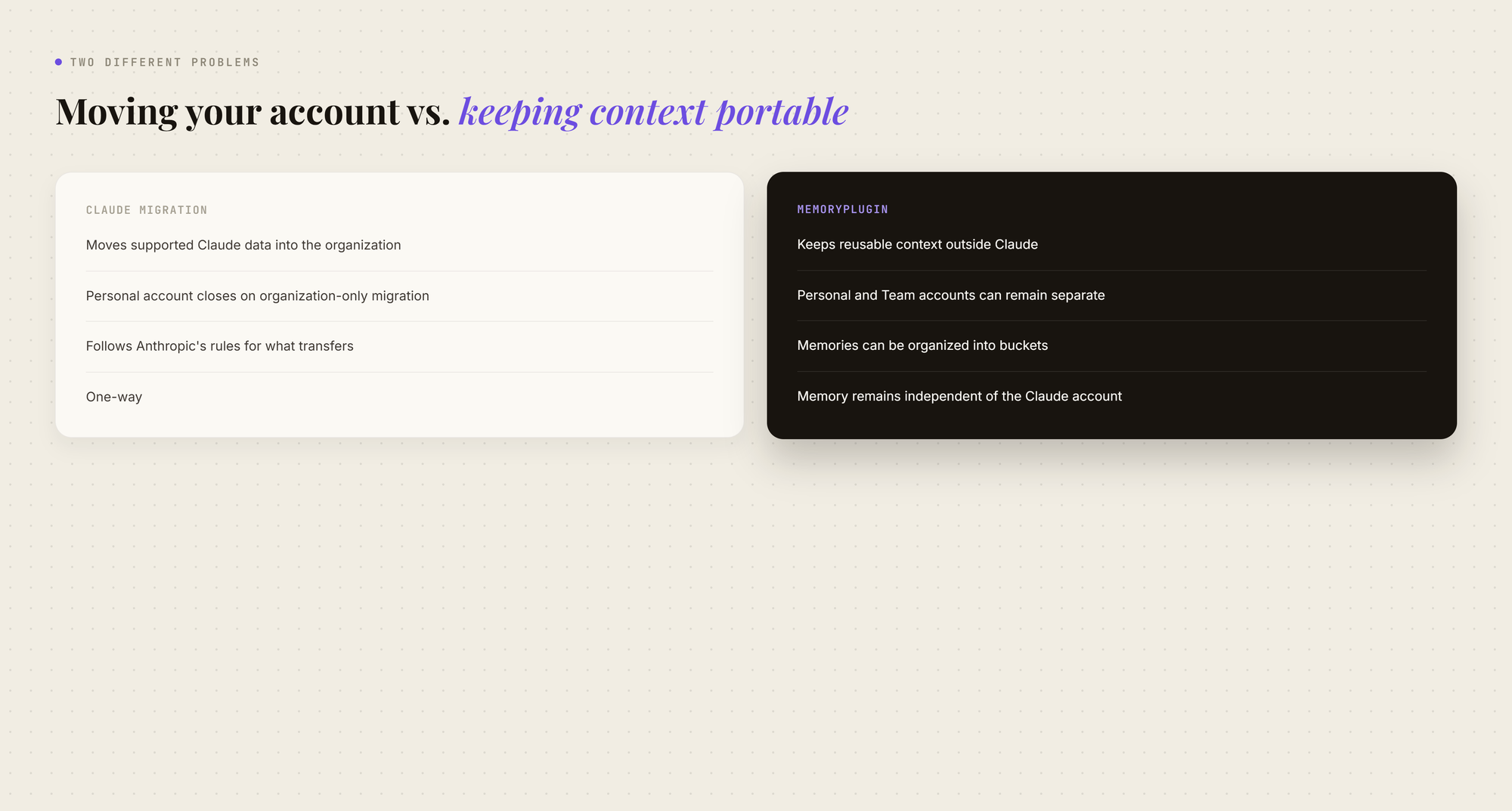
Claude migration moves your account.
MemoryPlugin keeps your reusable context portable.
That matters when you want to keep your personal and work Claude accounts separate without losing the context you've built up.