
How to Search Your Claude Chat History and Find Old Conversations
Find old Claude conversations using chat search, past-chat recall, or data exports.

You know you worked something out with Claude. A pricing decision, a bug fix, the wording for a tricky email. Now you need it back, and the sidebar only shows your most recent chats.
Claude gives you a few ways to search old conversations, and each one covers a different part of your history. Some only work on paid plans, some stop at the edge of a project, and some only give you a snapshot.
Below are the four ways to search your Claude chat history, when to use each one, and where each falls short.
Where Claude Stores Your Chat History
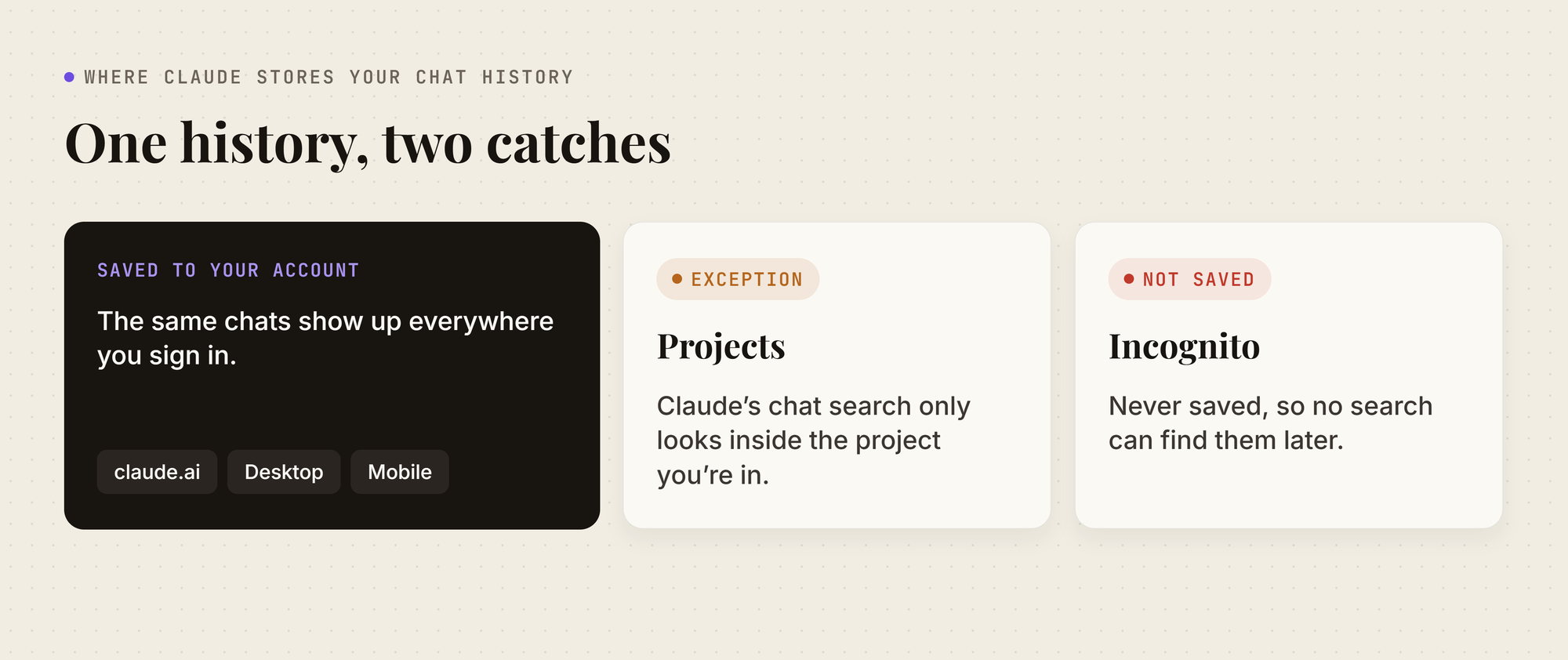
Your chats from claude.ai, Claude Desktop, and Claude Mobile are saved to your account, so the same history shows up everywhere you sign in. Two exceptions shape what you can find later:
4 Ways to Search Claude Chats at a Glance
1. Search Your Claude Chat List
If you remember roughly what a chat was about, start with your chat list. It's the fastest option and needs no setup.
The search box filters your list of chats. Claude usually names a chat based on what it's about, so it works best with words that are likely to be in the title:
- Open your full list: click Chats in the left sidebar. The sidebar on its own only shows recent chats.
- Search by title words: type a client, product, or project name into the search box at the top.
- Check your projects: if the chat was part of a project, open that project and look there as well.
Make future searches easier: rename important chats to something you would search for later.
2. Ask Claude to Search Your Past Chats
When you only half-remember the topic, title words won't get you far. On a paid plan, you can ask Claude to search for you instead.
Claude searches through your past conversations, shows the search as a tool call in your chat, and answers with citations that link back to the original chats. It works on Pro, Max, Team, and Enterprise plans, on the web, Claude Desktop, and Claude Mobile.
- Check that it's on: go to Settings > Your Claude (Settings > Memory on older layouts) and make sure Search and reference chats is on. It's on by default.
- Ask in plain language: describe what you're looking for, the way Anthropic suggests:
"What did we discuss about [topic]?"
"Can you find our conversation about [subject]?"
"Let's continue where we left off with [project]."
- Open the source: click a citation in Claude's answer to jump to the original chat.
Where Claude's Past-Chat Search Can't Reach
Anthropic's documentation sets a few limits on this search:
- One group at a time: a search started outside a project only covers chats outside projects. A search inside a project only covers that project.
- Paid plans only: it isn't available on the Free plan.
- No incognito chats: they were never saved, so they can't be found.
- Not from memory-off chats: if you start a chat with memory turned off in the "+" menu, Claude won't search your past chats from inside it.
- Some Enterprise accounts: organizations using customer-managed encryption keys can't use it at all.
Claude also returns the context that best fits your question, not a list of every match. For an exact phrase, the data export is more reliable.
3. Search Your Claude Data Export
When you need an exact word or phrase from months ago, your data export is the most complete option. It's a downloadable copy of every conversation in your account.
First, request the export:
- Open your settings: in the Claude web app or Claude Desktop, click your initials in the lower-left corner and select Settings.
- Request the file: go to Privacy and click Export data. Exports can't be started from the iOS or Android apps.
- Download it: open the email Claude sends you and download the file while signed in to your account.
Large exports can arrive as several ZIP files. Download each one.
A few things to know before you start:
- The link expires: it stops working 24 hours after it arrives, but you can request a new one anytime.
- Who can run it: any individual Free, Pro, or Max account. On Team and Enterprise plans, you can export your own chats once an owner turns on member exports, and the Primary Owner can export the whole organization's data from Organization settings > Data and privacy.
The export arrives as JSON files, which are hard to search by eye. To make it searchable:
- Convert it: drop the ZIP into MemoryPlugin's free Claude to Markdown converter, which runs entirely in your browser. If your export came in parts, convert each ZIP separately.
- Download the files: you get one clean Markdown file per conversation, matching the version you see in the app.
- Search them: open the files in Obsidian, Notion, or any text editor, and search years of chats in seconds.
The trade-off is freshness. An export is a snapshot, so anything you discuss after downloading it means another export.
Why You Still Can't Find That Old Claude Chat
Between these three methods, you'll find most conversations. Each one still leaves a gap:
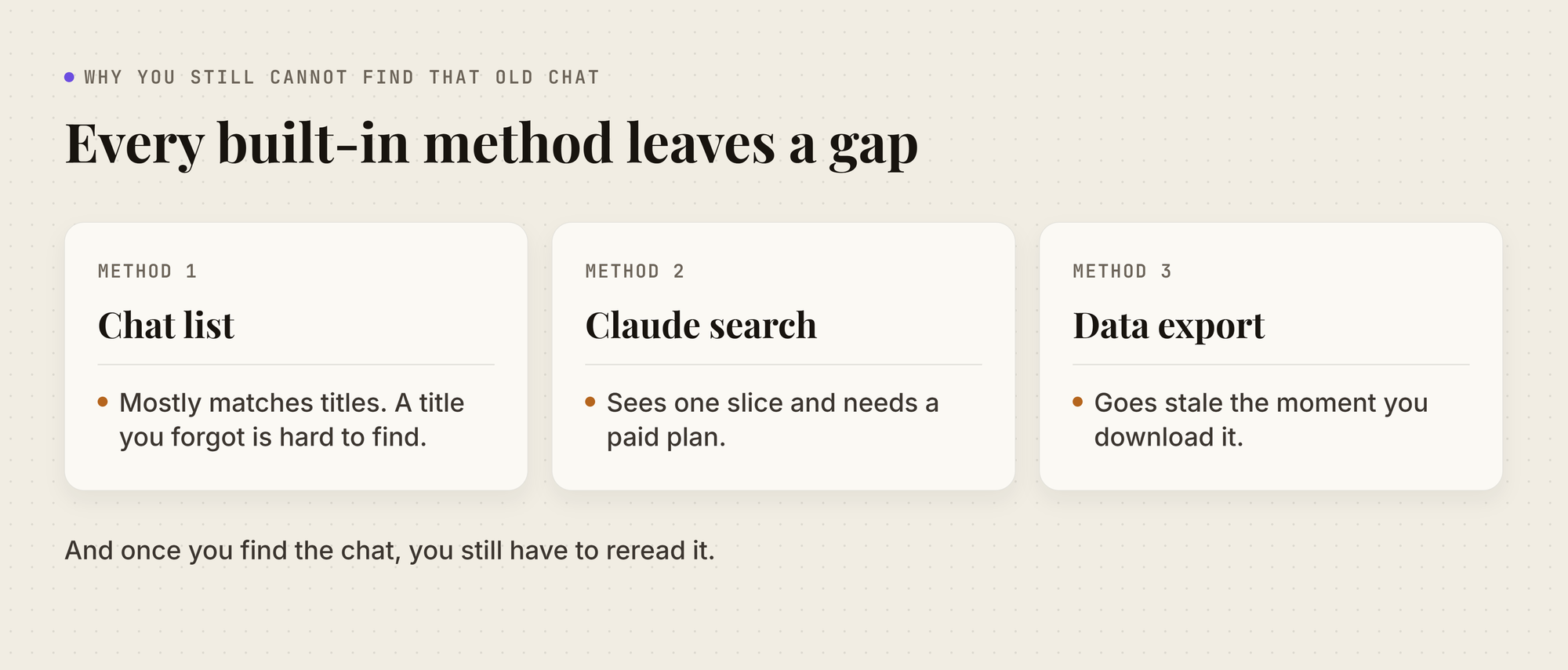
- The chat list relies on titles: if the title doesn't match what you remember, the chat won't show up.
- Claude's search sees a slice: it stops at project boundaries and needs a paid plan.
- The export goes stale: it's the most complete method, but you have to repeat it to keep it current.
And even when you find the right chat, you still have to reread it to pull out what you decided. What's missing is one search across your whole history, from the page you're already on.
4. Search Every Claude Chat in One Place With MemoryPlugin
MemoryPlugin is a memory layer for Claude and the other AI tools you use. It keeps two things for you:
- Chat History: a searchable archive of your past conversations.
- Memories: short notes about you and your work, loaded into new chats.
Together, they let you find an old Claude chat in seconds, and keep what you found so you don't have to search for it again.
Bring Your Claude Chats Into MemoryPlugin
Start by giving MemoryPlugin a copy of your Claude conversations. It takes two steps:
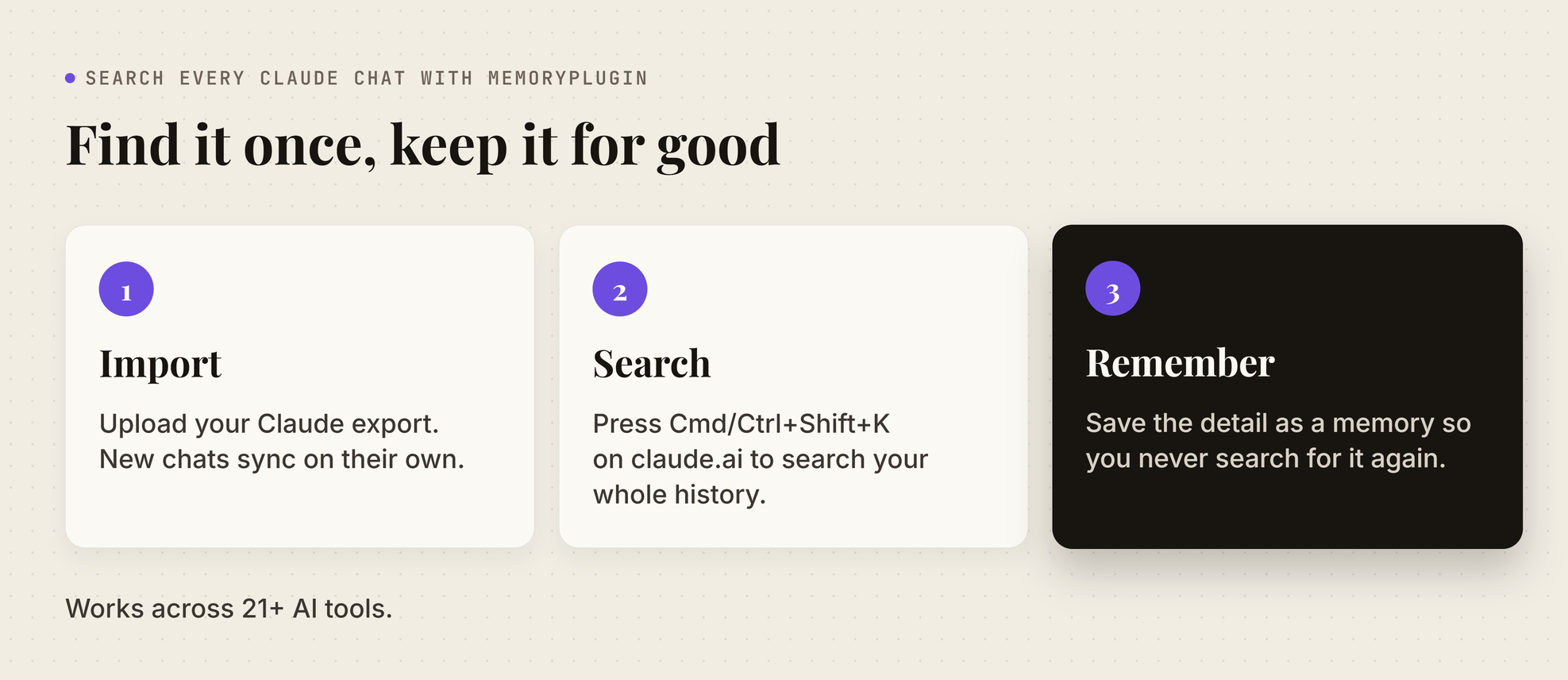
- Import your past chats: upload your Claude data export on the Chat History dashboard under Import chats > Claude. If it came as several ZIPs, upload them all together.
- Keep new chats coming in: turn on auto-sync in the browser extension, and your Claude conversations sync in the background about once an hour.
Re-uploading an export won't create duplicates. The Core plan includes 500 searchable chats from one platform, and Pro has no limit.
Search Old Claude Chats Without Leaving the Page
Once your chats are in, you can search them from claude.ai itself. Press Cmd+Shift+K (Ctrl+Shift+K on Windows and Linux), and a search window opens on the page. From there, you can:
- Find the chat: search your history, and filter to Claude or to chats you starred.
- Open what you need: open the conversation, copy its transcript, or jump back to the original chat.
- Pull out the answer: extract its key decisions, action items, or ruled-out ideas instead of rereading it.
If you have a question rather than a keyword, use Ask in your dashboard. It answers from your history, with citations back to the conversations it used.
Turn What You Find Into Memory
Most searches end with one detail you needed: a price you agreed on, a name, a decision from weeks ago. Save that detail as a memory, and you won't have to search for it again:
- Save it: highlight the line in a Claude chat and click Extract memory to save it as a short memory, or add it from your MemoryPlugin dashboard.
- File it: move it into the bucket for that project, so client work and personal notes stay apart.
- Reuse it: the next time you open a chat about that project, load the bucket with the MemoryPlugin button or auto-inject, and Claude starts with the detail already in place.
The same memories work in ChatGPT, Perplexity, Grok, and the rest of the 21+ AI tools MemoryPlugin supports.
Let Claude Search Your History for You
You can also skip the search window and let Claude look things up mid-conversation. There are two ways to turn this on:
- In the browser extension: switch on Chat History Recall in Settings.
- As a Claude connector: connect MemoryPlugin's remote MCP server to Claude.
Then ask Claude about a past conversation as you normally would. It searches your MemoryPlugin history and brings back a short summary of the relevant parts. Compared with Claude's built-in past-chat search:
- Your whole history: it searches every synced chat, not one project at a time.
- Any Claude plan: it works on Claude Free too, through the extension or as a connector.
- Other AI tools too: it can find a conversation you had in ChatGPT, not only in Claude.
Never Lose Track of an Old Claude Chat Again
Claude's own search finds some of your old conversations. MemoryPlugin gives you all of them in one place, searchable from inside Claude, and carries the details you need into every new chat across 21+ AI tools.
Start your free 7-day trial, import your Claude history, and find your next old chat in seconds.