

Why ChatGPT Remembers Things You Deleted (and How to Make It Forget for Good)
Deleted a ChatGPT memory but it keeps showing up? Learn why saved memories return, where ChatGPT stores your information, and how to remove it from every source.

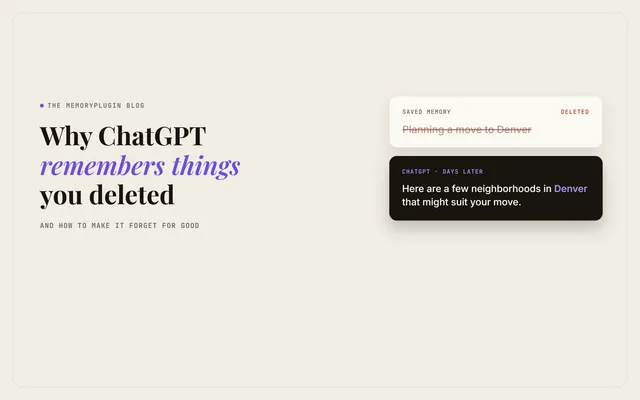
You delete the chat where you shared something, and ChatGPT still knows it. Or you remove a detail from your memory settings, and a few days later it shows up in an answer again.
In most cases, this isn't a glitch. ChatGPT's memory draws on several sources at once, and deleting from one of them leaves the others in place.
As long as a copy remains somewhere, in another chat, an archived chat, a file, or a connected app, ChatGPT can find it, use it, or rebuild the memory from it.
Making ChatGPT forget something means finding every copy, starting with where its memory comes from.
Where ChatGPT Memory Comes From
According to OpenAI's help page, ChatGPT's memory can draw on:
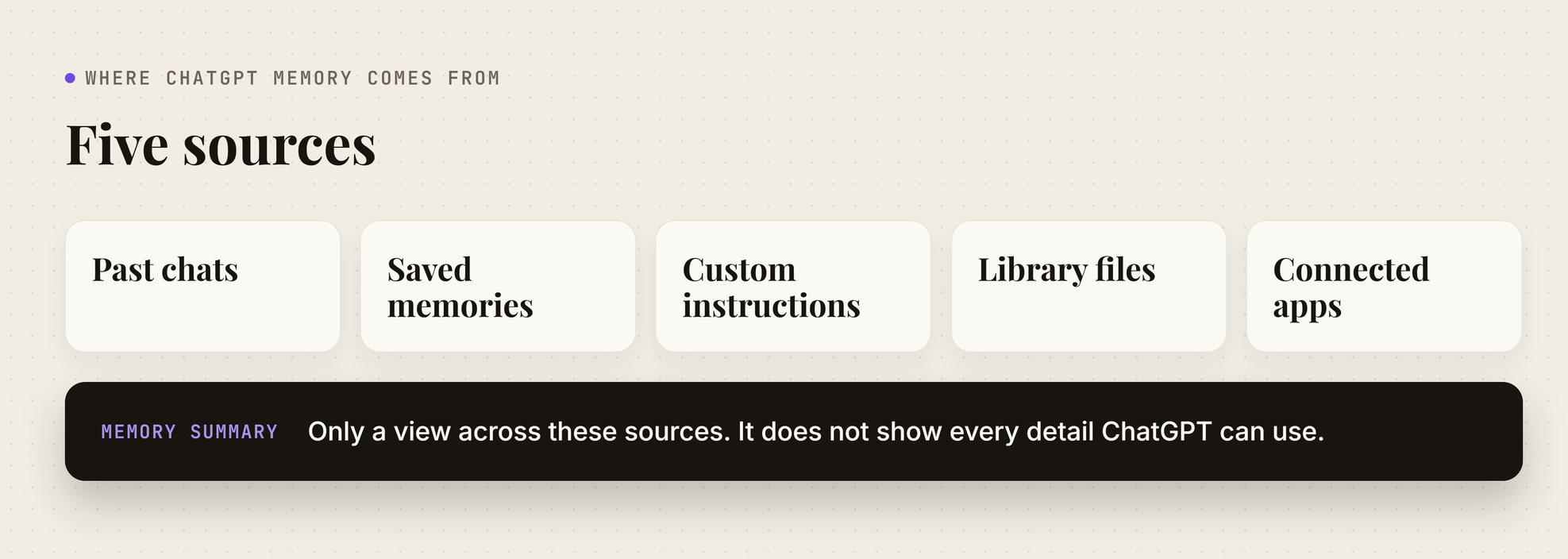
- Past chats: including archived ones.
- Saved memories: details you asked ChatGPT to remember, or that it saved on its own.
- Custom instructions: the standing guidance you wrote in settings.
- Files in your Library: documents you uploaded.
- Connected apps: content from apps like Gmail, on plans where they're available.
The memory summary you see in Settings > Personalization > Memory is only a view across these sources. OpenAI says it doesn't necessarily include every detail ChatGPT can reference.
That's the root of the problem. You can delete a detail from the place you can see, while copies sit in places you can't.
6 Reasons ChatGPT Still Remembers Something You Deleted
Each of these leaves a copy of the detail somewhere ChatGPT can still reach.
1. You Deleted the Chat, Not the Memory
Saved memories are stored separately from your chat history. When you delete a conversation, it disappears from your sidebar, but any memory ChatGPT saved from it remains in your memory settings until you delete that memory as well.
2. You Deleted the Memory, but Not the Chat
Here is how a deleted memory finds its way back:
- You delete "planning a move to Denver" from your memory settings.
- The chat where you first mentioned the move is still in your history.
- With Reference chat history on, ChatGPT draws on that chat and picks the detail up again.
OpenAI confirms that deleting a memory doesn't remove mentions of it from past conversations.
3. You Turned Memory Off, Then Back On
Delete and turn off memory clears your memory summary, but it leaves your chats alone. OpenAI says that if you turn memory on again later, ChatGPT may create new remembered information from chats that remain in your history.
This means a full reset can be partly undone by the conversations you kept.
4. Reference Chat History Is Still On
Saved memories and Reference chat history are two separate settings:
- Saved memories: specific details stored as individual entries.
- Reference chat history: what ChatGPT picks up from your past conversations, which changes as you keep chatting.
Clearing your saved memories leaves the second one running. Turning off Reference chat history schedules what it learned for deletion within 30 days, though the chats themselves stay unless you delete them.
5. You Chose "Don't Mention This Again"
This option reduces how often ChatGPT refers to a detail, but it doesn't delete it. OpenAI says the original source, whether a chat, file, or email, stays where it is.
6. The Deletion Hasn't Finished
If you've cleared every source and the detail still appears, the deletion may not have gone through yet. OpenAI says deletions and memory updates take time to go through, so a detail can show up briefly after you remove it. OpenAI may also keep logs of deleted saved memories for up to 30 days for safety and debugging.
If the delete button does nothing at all: since late 2025, some users have reported saved memories coming back right after deletion, especially when memory was nearly full. If that happens, try asking ChatGPT in a chat to forget the memory (results vary), then check your settings again.
How to Make ChatGPT Forget Something for Good
OpenAI's guidance is to remove the information from every place it appears. Work through each one:
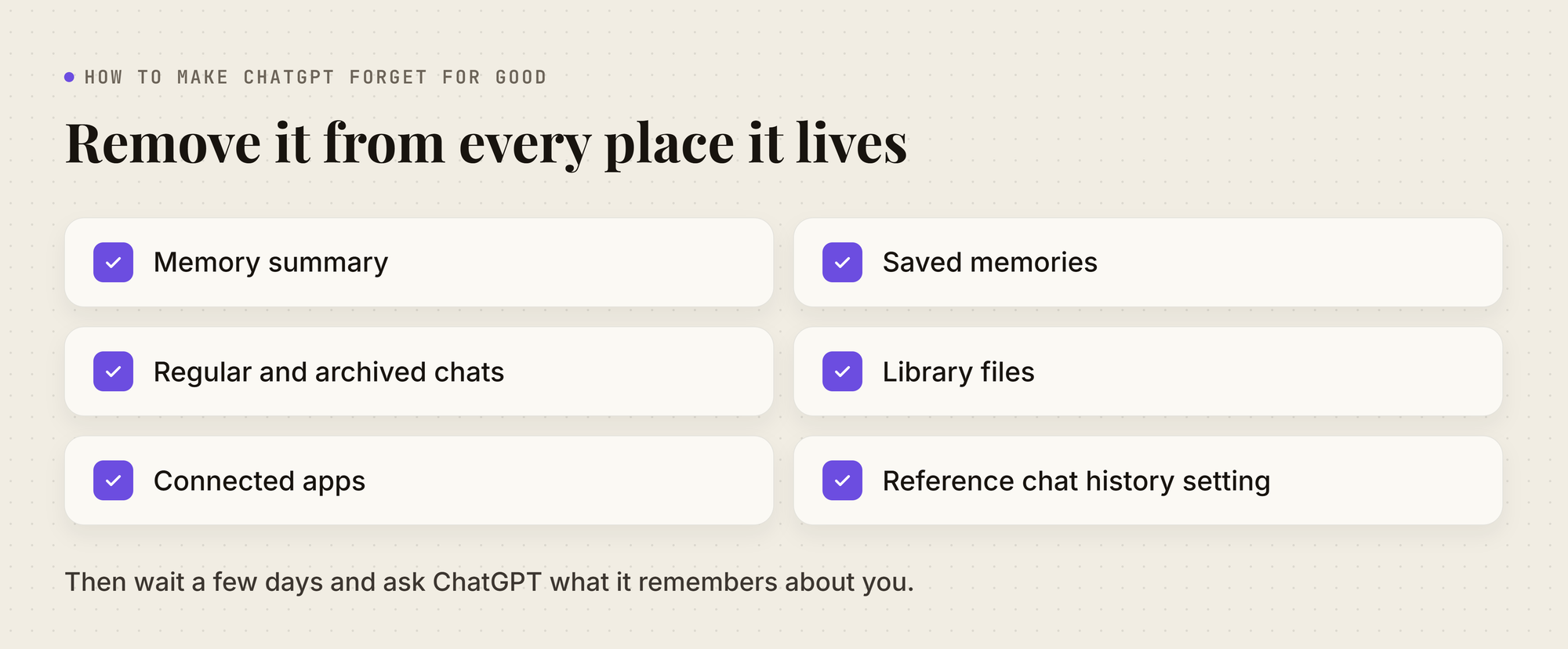
- Memory summary: open Settings > Personalization > ChatGPT memory > Memory summary > Manage and remove the detail. Correcting it only changes the summary, and the chats behind it stay. If you want a backup first, paste your memory summary or saved memories into MemoryPlugin's free ChatGPT Memory Exporter to save them as a Markdown file.
- Chats: delete every regular and archived chat where you mentioned it. The Sources panel under a reply can point you to chats that shaped an answer.
- Library files: delete any uploaded file that contains it.
- Connected apps: disconnect any app that holds it.
- Chat history setting: turn off Reference chat history if you don't want past chats used at all.
Deleted chats leave OpenAI's systems within 30 days, unless OpenAI has to keep them longer for legal or security reasons.
Then wait a few days, open a new chat, and ask:
"What do you remember about me? Include anything from past chats."
If the detail doesn't appear, the cleanup worked. If you only need to correct a detail rather than remove it, see how to edit AI memories across platforms.
How to Keep ChatGPT From Remembering It Again
Once a detail is gone, a few habits keep it from coming back:
- Use an unpersonalized Temporary Chat: temporary chats never create or update memories. Choose Unpersonalized before you start, and it won't use your existing memories either.
- Don't save the temporary chat: saving it converts it into a regular chat, which then follows your normal memory settings.
- Say it in the chat: tell ChatGPT not to use a detail in future responses. OpenAI lists this as a way to limit what it brings up.
- Check the training setting separately: memory and model training are different controls. To keep your chats out of training, turn off Improve the model for everyone in Data controls.
How to Control Exactly What Your AI Remembers With MemoryPlugin
Every reason above comes down to one thing: ChatGPT builds memory from sources you can't fully see, so you can't be sure what's left after you delete something.
MemoryPlugin is built the opposite way. Your memories are a plain list of individual entries that you can read, edit, and delete in one place. It works across 21+ AI tools, including ChatGPT, Claude, Perplexity, and Grok, so the same list follows you between them.
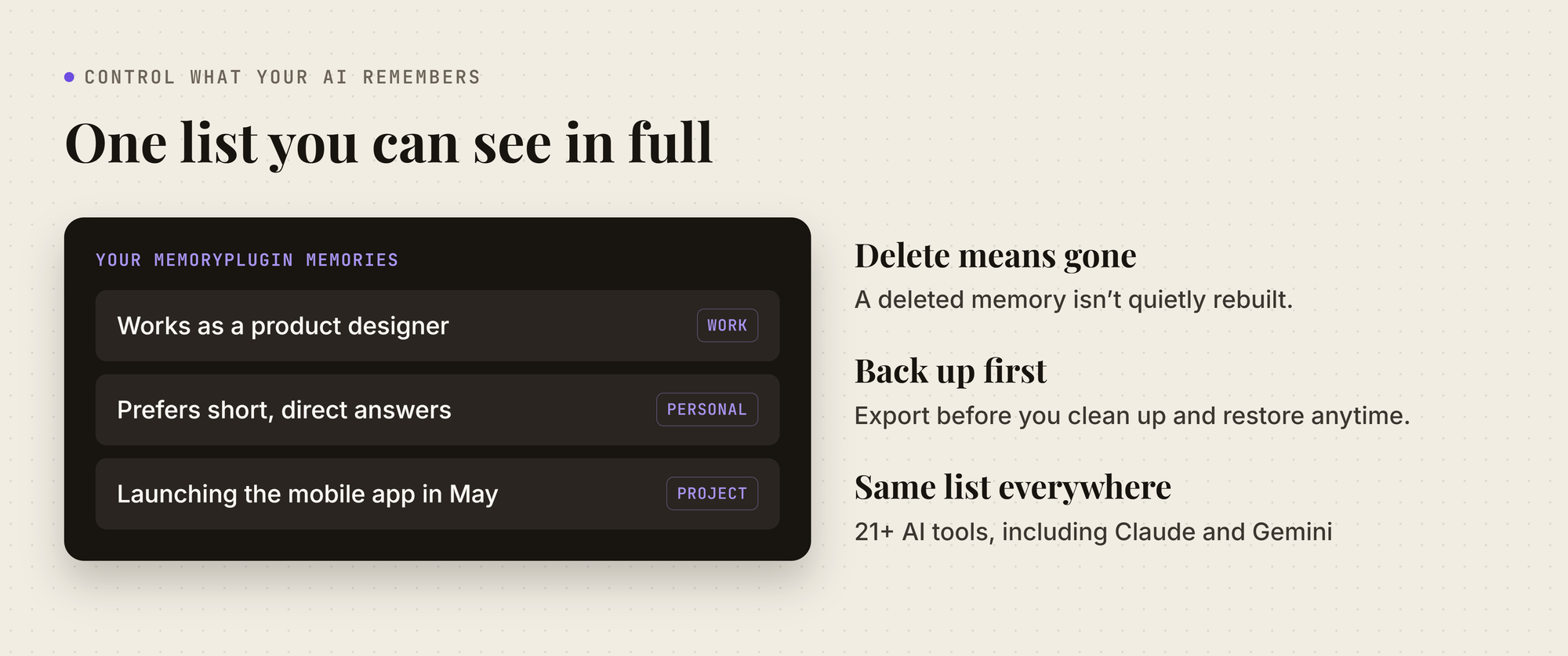
Memory You Can See, Delete, and Trust
Here is how the ChatGPT problems above play out in MemoryPlugin:
If you also sync your chat history to MemoryPlugin, delete that chat too, so Chat History Recall can't bring the detail back.
Keep the Context, Turn Off the Guesswork
If ChatGPT's memory has become more trouble than it's worth, you can turn it off and still keep the context you rely on. MemoryPlugin adds the memories you chose, from the bucket you pick, into your ChatGPT chats. Your role, your projects, and your preferences come along, and you control exactly which memories are in the list.
A few controls make this precise:
- Pick what goes in: buckets keep work, personal, and each project separate, and only the bucket you choose is added to a chat.
- Leave a chat out: MemoryPlugin joins a chat when you activate it, or on its own if you turn on auto-inject. Click Cancel on the auto-inject countdown to keep a chat memory-free.
Back Up Your Memories Before You Clean Up
Clearing out old memories is easier when you know you can undo it. Before you delete anything, click Export in your MemoryPlugin dashboard to save a copy:
- CSV: keeps each memory's text, date, bucket, and category, so it's easy to review in a spreadsheet.
- JSON: the best format to keep if you might restore later.
- Text: a plain list you can read or paste anywhere.
You can export a whole bucket, or select just the memories you're about to remove. If you later find you deleted something you needed, import the file back into the same bucket. MemoryPlugin skips memories already in that bucket, so restoring never creates duplicates.
Choose What Your AI Remembers
ChatGPT's controls are built for removing things after they're saved. MemoryPlugin starts from the other end: you keep every memory in one list you can review, and bring that same context into ChatGPT, Claude, and the other AI tools you use.
Try MemoryPlugin free for 7 days and give your AI only the context you choose.