

How to Edit AI Memories Across Platforms (ChatGPT, Claude, Gemini, and More)
AI memory gets outdated fast. Learn how to edit or delete memories in ChatGPT, Claude, Gemini, Perplexity, and Grok, and how to keep the same memory accurate across every AI tool.

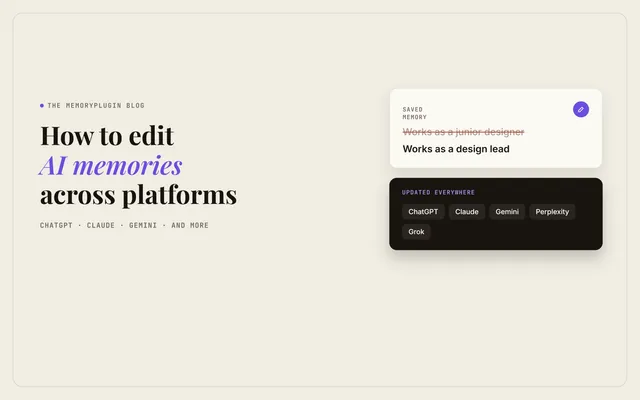
AI memory is only useful when it is right. The moment it holds something outdated, like an old job title, a finished project, or a preference you changed, every answer starts leaning the wrong way.
The fix is to edit the memory. The problem is that every AI tool handles this differently. Some let you rewrite a single entry. Some only let you correct a summary of what they remember. Some barely show you what they stored at all.
This guide covers what each platform lets you change, how to do it step by step, and how to keep one memory correct across all of them.
Why You Need to Edit AI Memory
Most AI tools decide what to remember without asking you. Over time, the memory fills up with:
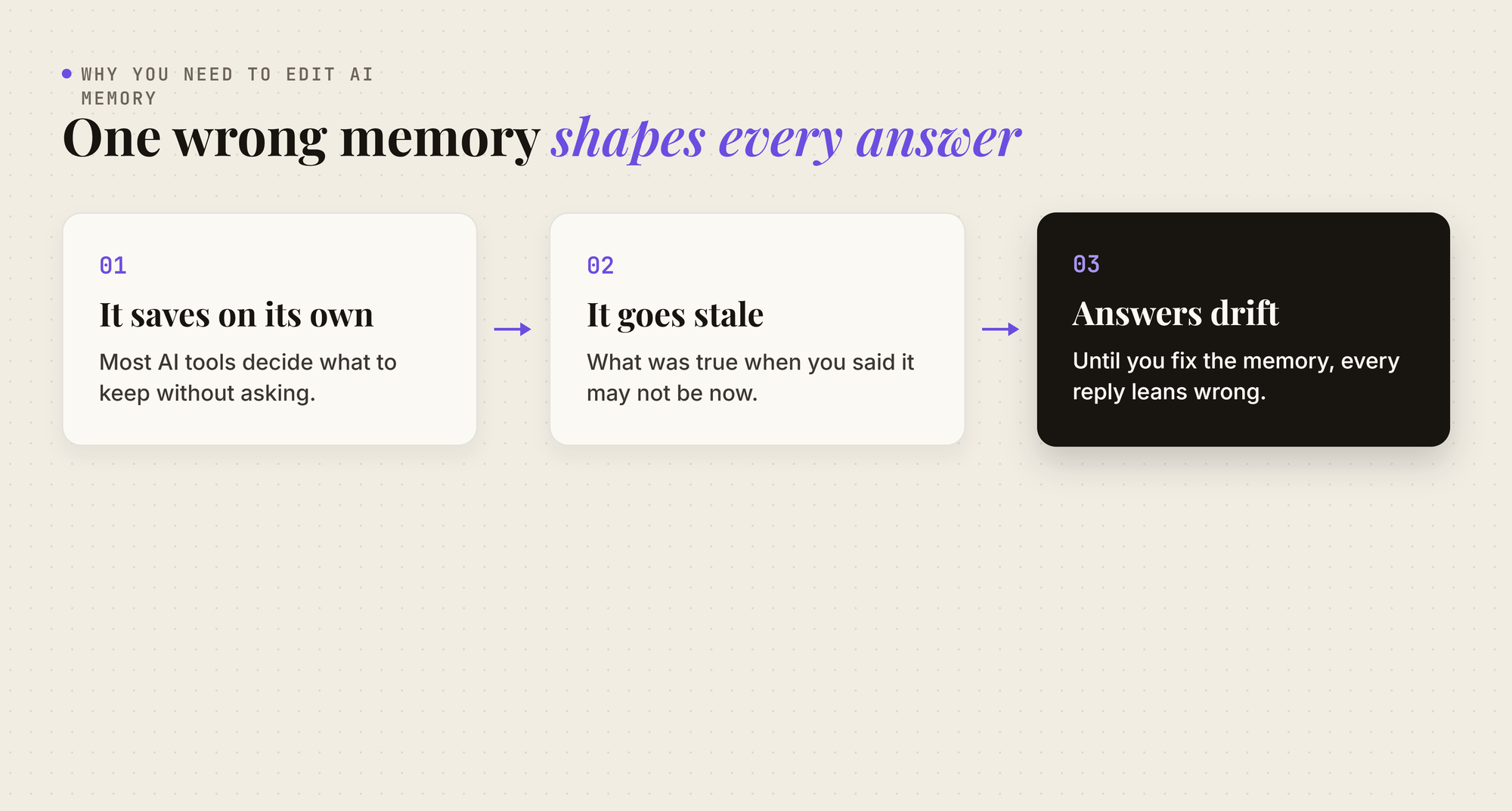
- Outdated facts: things that were true when you said them, but are not anymore.
- Wrong guesses: details the AI inferred from one conversation and treated as permanent.
- Things you never meant to keep: a one-off question or a private detail that now shapes every reply.
Left alone, these compound. You end up correcting the AI in chat after chat without ever fixing the memory itself.
Can You Edit AI Memory? What Each Platform Allows
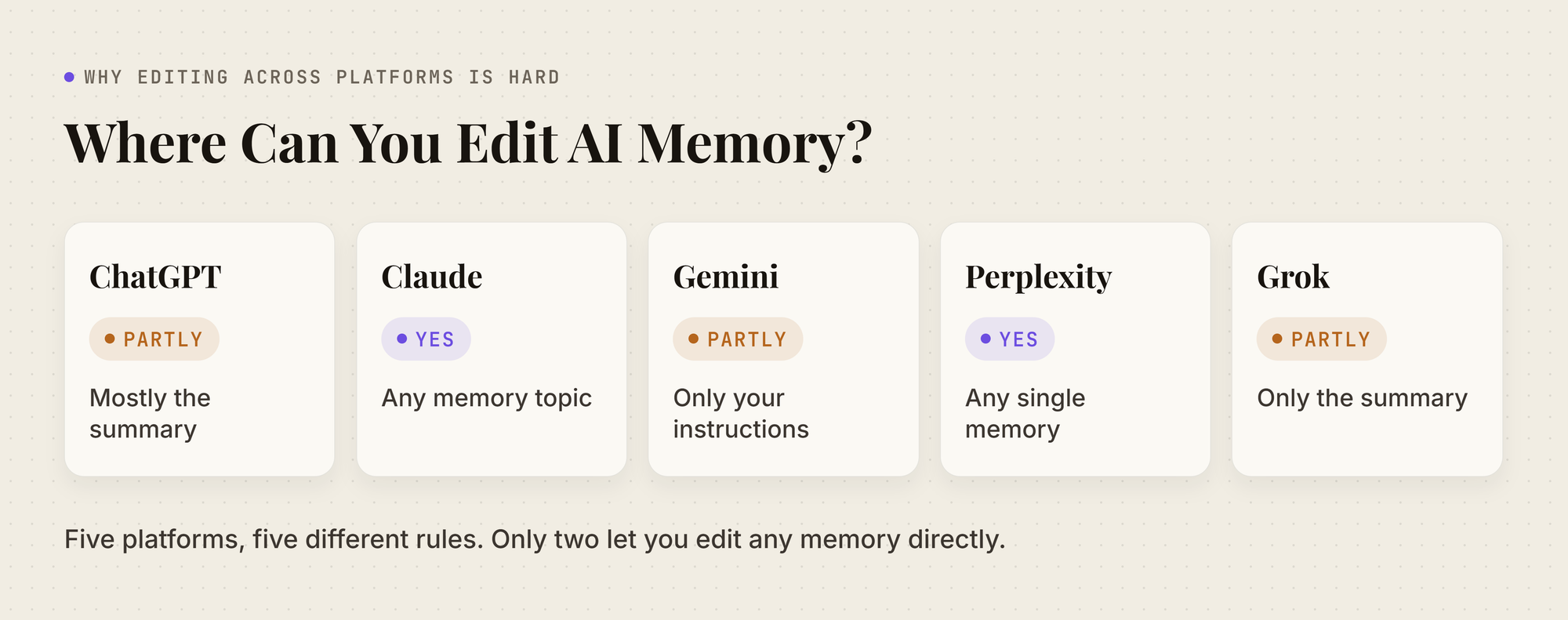
Not every tool lets you rewrite a memory. Here is what you can change, based on each company's own help documentation:
How to Edit ChatGPT Memory
Where ChatGPT Memory Lives in 2026
Since June 2026, ChatGPT has been rolling out improved memory, with a memory summary that it builds and updates in the background. The older saved memories list still exists as a legacy option. On the Memory settings page, select Saved memories to switch to it, or Try improved memory to switch back.
How to Change or Delete a ChatGPT Memory
You can't edit ChatGPT's underlying memory directly, but you can correct its memory summary. The summary is a high-level view that OpenAI says may leave details out, so it isn't the full memory.
- Open Settings > Personalization > Memory.
- Click Manage to open your memory summary.
- Type a correction into the text field, or highlight the wrong text and correct it.
- If you just want ChatGPT to stop bringing something up, select Don't mention this again where it appears. This does not delete the original source.
To wipe the summary, choose Delete and turn off memory from the ••• menu. This deletes the remembered information shown in the summary and turns memory off. Your past chats stay, and if you turn memory back on, ChatGPT may create new memories from them.
On the legacy saved memories list, you can delete entries one at a time, and edit them where that control is available. On either version, you can also say "That is outdated, update it to..." or "Forget that I..." in a chat. When a reply shows Sources, you can correct or delete a saved memory from there, or mark a source as not relevant.
What Deleting ChatGPT Memory Does Not Do
- Deleting a chat does not necessarily delete its memory: to fully remove something, delete both the memory and the chat.
- The summary is not the full picture: OpenAI notes the memory summary does not show everything ChatGPT remembers.
How to Edit Claude Memory
Claude gives you the most direct control. Since August 2026, it organizes everything it remembers into topics you can read and change.
How to Edit a Claude Memory Topic
- Open Settings > Memory.
- Find the memory under Topics and select it to read it.
- Click the edit icon and describe the change you want.
How to Delete Claude Memory
Select any topic and choose Delete to remove it. Keep in mind that deleting a conversation does not delete what Claude learned from it, so remove the topic directly.
How to Edit Gemini Memory
Gemini keeps two kinds of memory, and you can only edit one of them.
How to Edit Instructions for Gemini
Instructions for Gemini (called Saved info in some regions) are facts and preferences you write yourself, like "keep answers short."
- Open Settings & help > Personal Intelligence.
- Open Instructions for Gemini.
- Use the More menu next to an instruction to change or delete it.
How to Remove Something Gemini Learned From Your Chats
Gemini's Memory also learns from your past chats. You can't see or edit this part directly, but you can ask Gemini, "Did you use any info from past chats?" to check. Google's help page gives two ways to fix it:
- Correct it in the chat: tell Gemini the detail is wrong, right in the conversation.
- Delete the chats it came from: remove every chat containing that detail from Gemini Apps Activity. There can be a short delay before Gemini stops using it.
If the detail came from a connected Google app, do both: delete those chats and disconnect the app.
How to Edit Perplexity Memory
Perplexity keeps a full list of memories that you can search and change.
- Open Settings > Memory.
- Click Manage memories to open your full memory list.
- Search for the memory, then edit or delete it.
To start over, use Delete all memories. Memories inside a Perplexity Project are kept separate, so manage those from the Project itself.
How to Correct Grok Memory
Grok builds a memory summary from your chats, and you can correct it. Like ChatGPT's, the summary is a view of what Grok remembers, not the memory itself.
- Open Settings and go to your memory summary.
- Edit it directly, or highlight any text to correct or remove it.
- To erase everything, use Delete memory. This deletes all of Grok's saved memory.
Turning off Personalize Grok with your conversation history under Settings > Data Controls stops Grok from using your chats.
Why Editing AI Memory Across Platforms Is So Hard
Each tool gives you some control. If you use more than one, the gaps add up:
- You fix the same fact five times: change jobs or move cities, and you update every tool one by one.
- Every tool edits differently: Claude and Perplexity let you change a single memory, ChatGPT and Grok mostly let you correct a summary, not the memory behind it, and Gemini's learned memory cannot be edited at all.
- You cannot see everything: ChatGPT's summary is incomplete and Gemini's learned layer is hidden, so you only fix what you can find.
- Nothing stays in sync: a correction in one tool does nothing for the others, so they slowly drift apart.
The editing itself is not the hard part. Keeping five separate memories correct is.
How to Edit Your AI Memory Once With MemoryPlugin
This is the problem MemoryPlugin was built to solve.
MemoryPlugin keeps one set of memories outside every AI tool, and adds them to your chats in ChatGPT, Claude, Gemini, Perplexity, Grok, and 21+ other tools. Because every tool reads from the same memories, you only edit them in one place.
How MemoryPlugin Keeps One Editable Memory
- Every memory is in one list: read, edit, add, and delete memories from the MemoryPlugin dashboard or the browser extension panel.
- Edit once, and every tool gets it: when you change a memory, the updated version is what goes into your next chat, whichever AI you open.
- Memories stay organized: each project or area of life gets its own bucket, so you find and fix a memory fast.
- Cleanup is easier: Memory Suggestions spots duplicates and outdated memories and proposes fixes. Nothing changes until you approve it.
You do not have to start from scratch, either. MemoryPlugin can sync the memories ChatGPT already has into your MemoryPlugin list, where you can edit them like any other entry.
Native AI Memory Editing vs MemoryPlugin
Your AI tools keep their own memory features, and those still work. MemoryPlugin gives you one memory you can see, edit, and trust across all of them.