

How to Transfer ChatGPT Memory to Claude, Gemini, or a New Chat
Move ChatGPT memory to Claude, Gemini, or Grok. Guide to official imports, manual transfers, and keeping your AI context across tools.


ChatGPT is the most widely adopted AI since its release in 2022. Thousands of our chats and projects live there. It has our preferences figured out. Memory is stored inside.
Most of it is invisible. You only notice when you try to move it somewhere else.
More people are using multiple AI tools now. Claude Code is included with Claude Pro. Gemini integrates image and video into the Google ecosystem. Grok connects to real-time data. You might use one for coding, another for research, and another for creative work.
The problem is that each tool starts from zero. None of the differences between these tools is a dealbreaker on its own. But the friction of rebuilding your context every time you open a different one adds up.
Even if you are not switching tools, you have probably hit the smaller version of the same problem inside ChatGPT itself. You start a new chat, and it feels like none of the work from the last one carried over. You move to a project, and the Custom Instructions from your main account stop applying. You wanted that one decision from a chat three weeks ago, and you cannot find it.
This guide covers both. How to carry memory or your context to another ChatGPT chat, and how to carry it to Claude, Gemini, or whatever you switch to next.
How ChatGPT Memory Works and What It Stores
Before you move anything, you need to know what you are actually moving. ChatGPT uses several systems that sound similar but behave differently.
Memory is the automatic layer. When you tell ChatGPT, "remember I work in fintech" or "I prefer concise answers," it may save that as a memory. These details surface in future chats without you repeating them.
But Memory is selective and applied dynamically. It is not a complete record. It is a filtered list of facts OpenAI's system judged worth keeping. One-off details usually disappear. Project state rarely sticks. Full chat history is never part of it.
Because Memory is selective, ChatGPT may reuse some details while ignoring others. Even saved information may not appear in every conversation if it is not considered relevant to the current task. This is why Memory can feel reliable in one chat and inconsistent in the next.
Projects are the closest ChatGPT gets to a persistent workspace. They group related chats, files, and Project-level instructions, and recently gained their own scoped Memory that does not leak into the rest of your account. Useful, but still implicit. There is no list of what the model remembers, and older messages still fall out of the Context Window.
So when people say they want to "transfer ChatGPT memory to another chat," they mean one of two things:
Within ChatGPT: They want a new conversation to remember what an older one covered. Memory handles preferences, not project state or recent context.
Across AI tools: They want Claude, Gemini, or Grok to know what ChatGPT learned about them.
Here is how to handle both.
How to Transfer ChatGPT Memory to Another ChatGPT Chat
You have a few options. Some are manual. One is automatic.
Manual Ways
The better way: Use MemoryPlugin to Transfer Memory to Another ChatGPT Chat
We built MemoryPlugin partly because we got tired of doing this dance ourselves.
MemoryPlugin works alongside ChatGPT by adding a separate, persistent memory layer that operates outside ChatGPT's native context window and Memory system.
Rather than replacing ChatGPT's automatic inference, MemoryPlugin lets you store information explicitly and retrieve it intentionally.
What it is:
- Buckets organize your memories by project, client, or life area. Each chat pulls only from the bucket that applies.
- Chat History imports your full ChatGPT history and makes it searchable in natural language.
- Files store documents you can query across conversations without re-uploading.
- Smart Memory categorizes what you save and keeps your prompts lean.
- Ask lets you search memories, history, and files from one place.
How it works in three steps:
- Install the extension: Browser extension for Chrome or Safari. It runs directly inside ChatGPT. No separate tab to manage.
- Save as you chat: Important information from your conversations gets stored automatically. Or trigger it manually by telling ChatGPT to remember something. The memory lives outside ChatGPT, visible in your dashboard, editable by you.
- Press the button: When you start a new chat, press the MemoryPlugin button. Your relevant memories get added to the conversation before you send your first message. No pasting. No re-uploading.
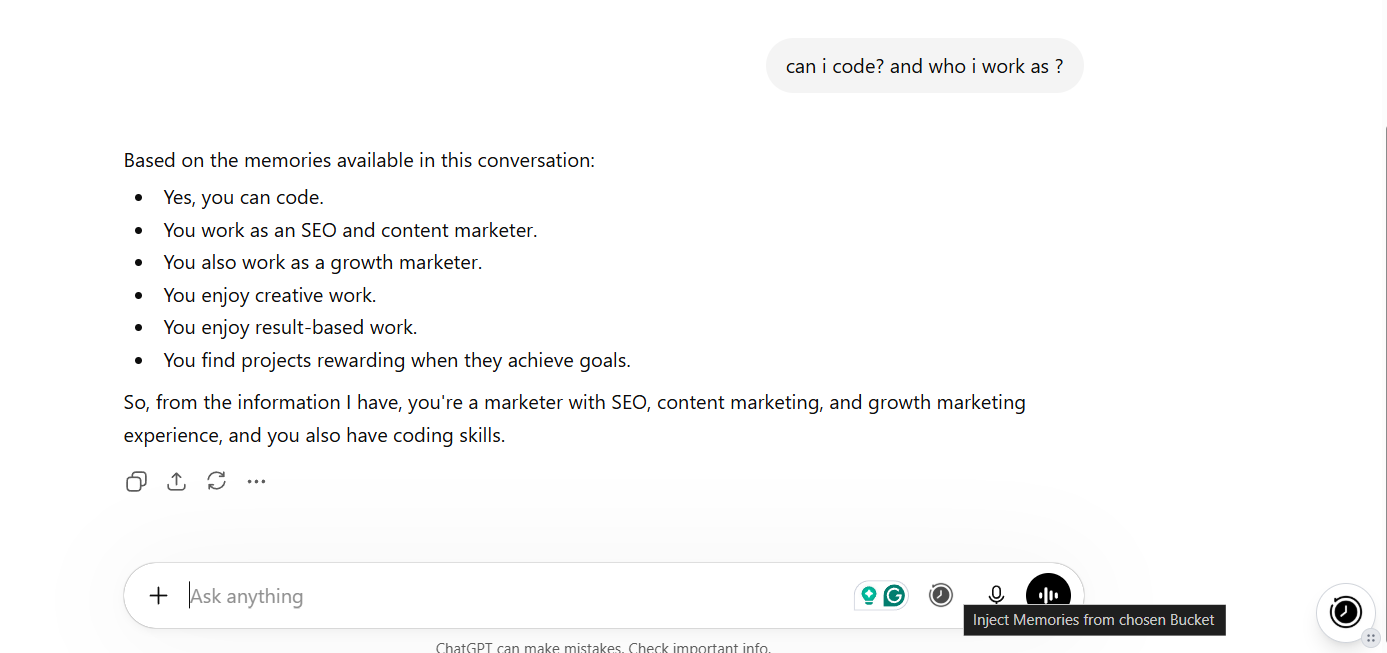
What this looks like in practice. You spend an hour refining a product spec with ChatGPT. The model knows your users, your technical constraints, and your open questions. You close the tab.
Tomorrow you open a new chat. Before you type anything, MemoryPlugin has already loaded your product bucket. You ask, " What about the pricing page?" and the model answers as if the conversation never stopped. No summary to paste. No context to rebuild.
How to Transfer ChatGPT Memory to Another AI Tool
Inside ChatGPT, Memory is at least global. Move to Claude, Gemini, or anywhere else, and your memory does not exist at all. You start over.
Manual ways
The Claude import.
- In Claude, go to Settings > Capabilities > Import memory from other AI providers > Start Import.
- Copy the prompt and paste it into ChatGPT.
- Paste output into Claude's memory.
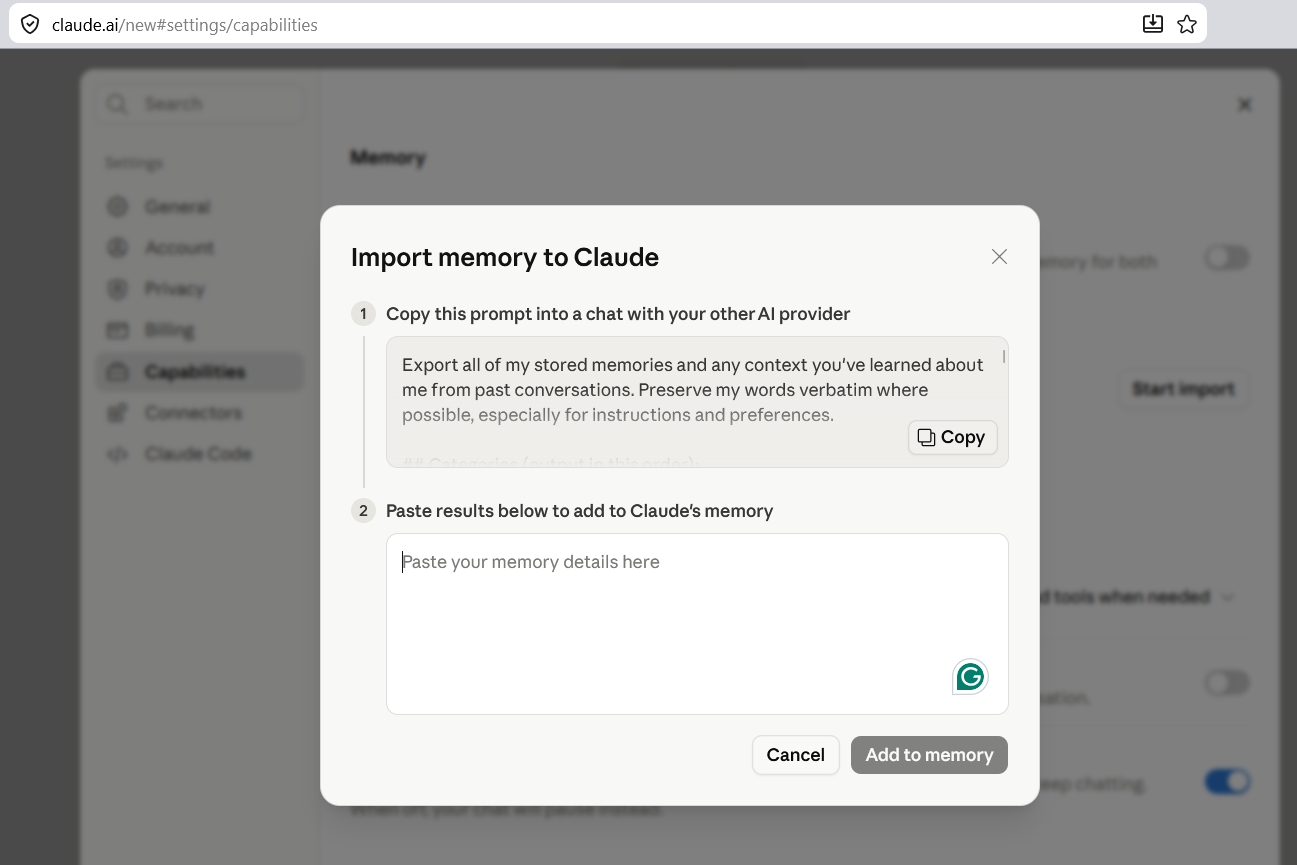
This is the cleanest official transfer available. It only works for Claude. It does not move your chat history, Projects, Custom Instructions, or Custom GPTs. And it is one-time. New memories you create in ChatGPT after the import do not show up in Claude. You repeat the cycle every time you want fresh context across.
The Gemini import
In Gemini, go to Settings > Import your AI chat history and memories. You get two options.
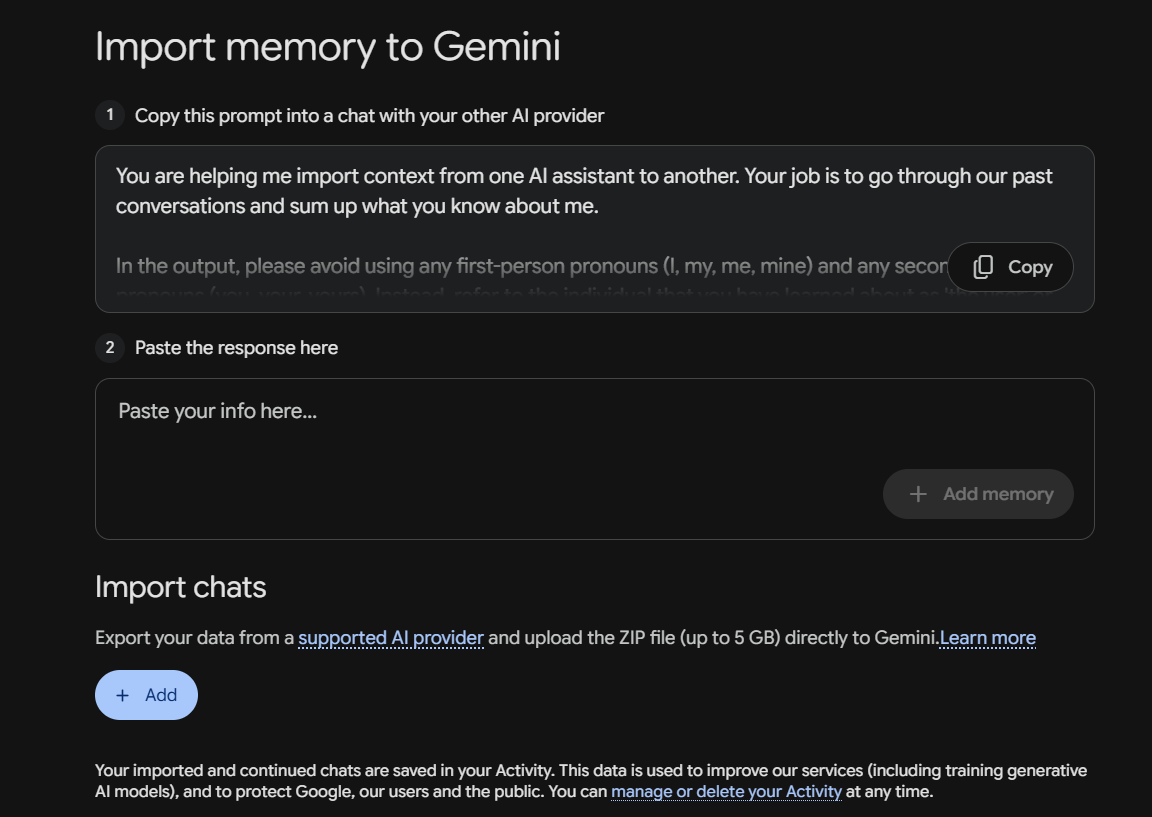
Memory
- Copy the suggested prompt and paste it into ChatGPT.
- ChatGPT outputs a summary of what it knows about you, stripped of first and second person pronouns, organized into five categories with evidence quotes and dates.
- Copy that output and paste it back into Gemini.
- Gemini analyzes it and saves the facts to your context.
Same one-time handshake as Claude.
Chat history
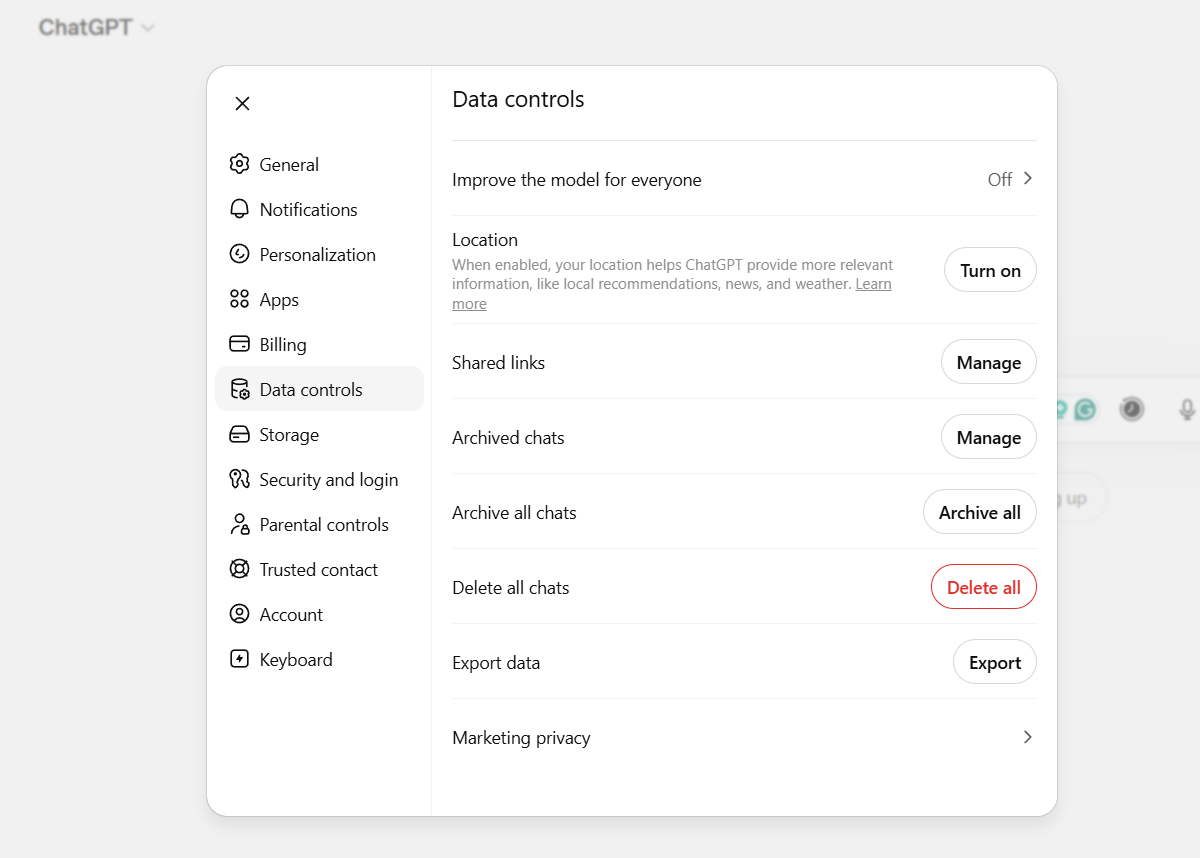
- Export your full ChatGPT data as a ZIP file (up to 5 GB).
- Upload it directly into Gemini.
- Gemini parses your past conversation threads, organizes them, and lets you search and continue them inside Gemini.
Images and files do not transfer. Text only. Imported chats land in Activity, where Google uses that data to improve its services, including training generative AI models. You can manage or delete it later.
This is the most complete official transfer available. It covers both memory and history, which neither Claude nor anyone else offers in one place. And it is still one-time.
New memories you create in ChatGPT after the import do not show up in Gemini. You repeat the cycle every time you want fresh context across.
Grok, and everything else.
There is no official import. Your options:
- Copy memories manually from Settings > Personalization > Memory. Paste them into the new tool's system prompt or Custom Instructions.
- Export your full ChatGPT data and dig through conversations.json. You still have to extract the facts yourself.
- Ask ChatGPT to list everything it knows about you, copy that output, and paste it wherever you are going.
All three are one-time, all three are manual, and all three lose ChatGPT's inferred context. The stuff ChatGPT picked up about you without explicitly saving it.
The better way: Use MemoryPlugin to Transfer ChatGPT Memory into Another AI Tool
This is the case MemoryPlugin was actually built for.
MemoryPlugin works alongside your AI tools by adding a separate, persistent memory layer that operates outside any single model's native context window and Memory system. Rather than replacing each tool's automatic inference, MemoryPlugin lets you store information explicitly and retrieve it intentionally, no matter which AI you are using.
What it does across tools:
- One memory layer, multiple models: Your context lives in MemoryPlugin, not inside any single tool. Open ChatGPT, Claude, Gemini, or Grok. The same memories are available.
- No re-export: Sync your ChatGPT memories once. They stay current as you work. You do not repeat the Claude import cycle every time you create a new memory.
- Chat History across platforms: Import your ChatGPT history and search it in natural language. Pull relevant pieces into Claude or Gemini when you need them.
- Buckets stay consistent: Organize memories by project or client. The same bucket loads in whichever tool you happen to be using.
How to set it up:
- Import your chat history: If you want past conversations to be searchable. Open the extension panel, go to the Sync tab, select your platform, and start syncing.
- Connect your tools: Browser extension for ChatGPT, Claude, Gemini, Grok, Perplexity (15+ platforms). MCP server for Claude Desktop. TypingMind plugin. Custom GPT and API for direct integrations.
- Your memory stays platform-independent: Your memory keeps growing as you work on whichever tool you are using.
Sync your ChatGPT memories: Open ChatGPT, go to Settings > Personalization > Manage Memories. Click the "Sync Memories" button with the MemoryPlugin logo. Wait a couple of minutes. Keep the tab open. The sync is idempotent, so running it again will not create duplicates.
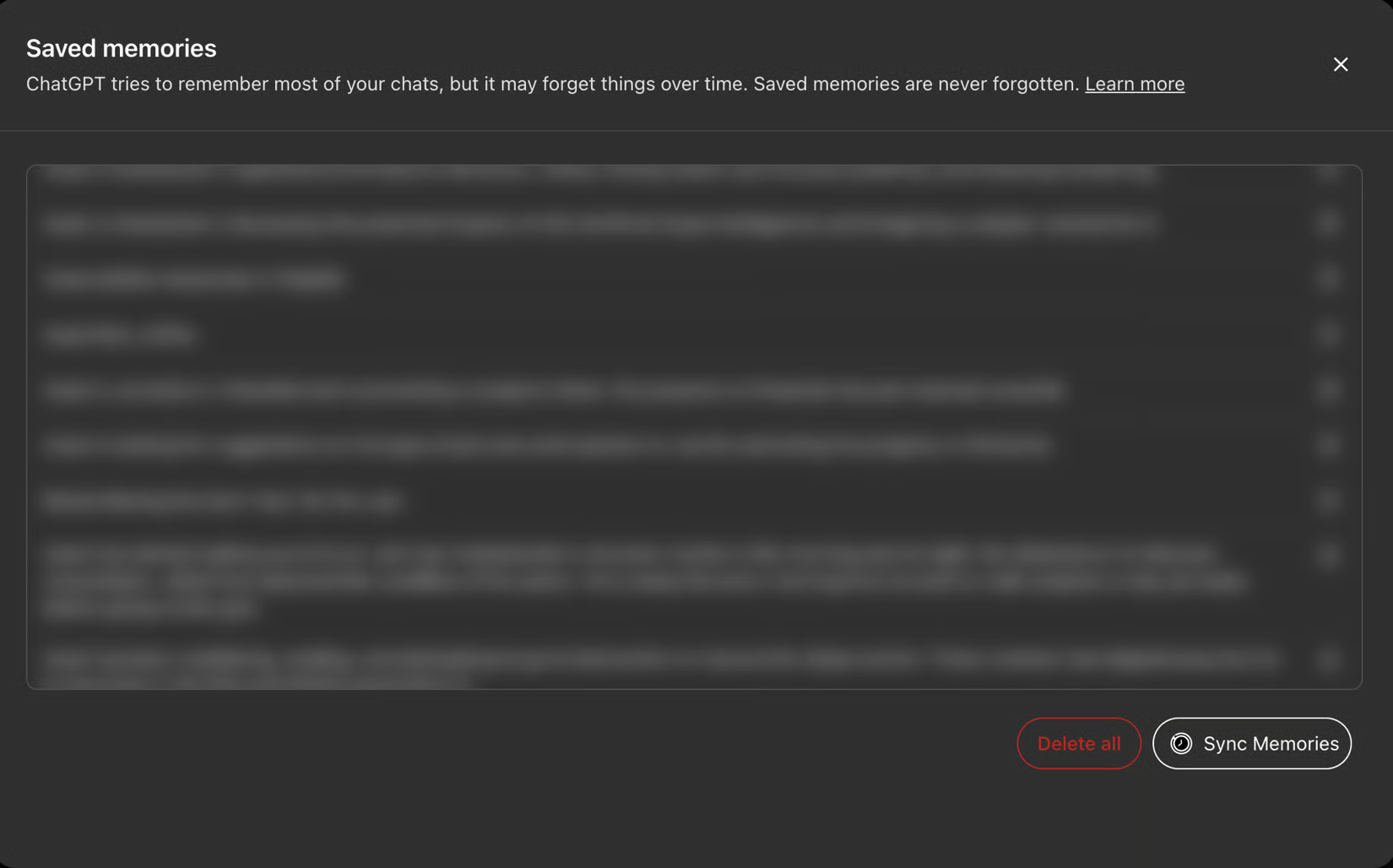
With this, your context travels with you. When you open a different tool, your project constraints and preferences are already there.
Try MemoryPlugin. It is designed to keep your memory working after you switch tools.