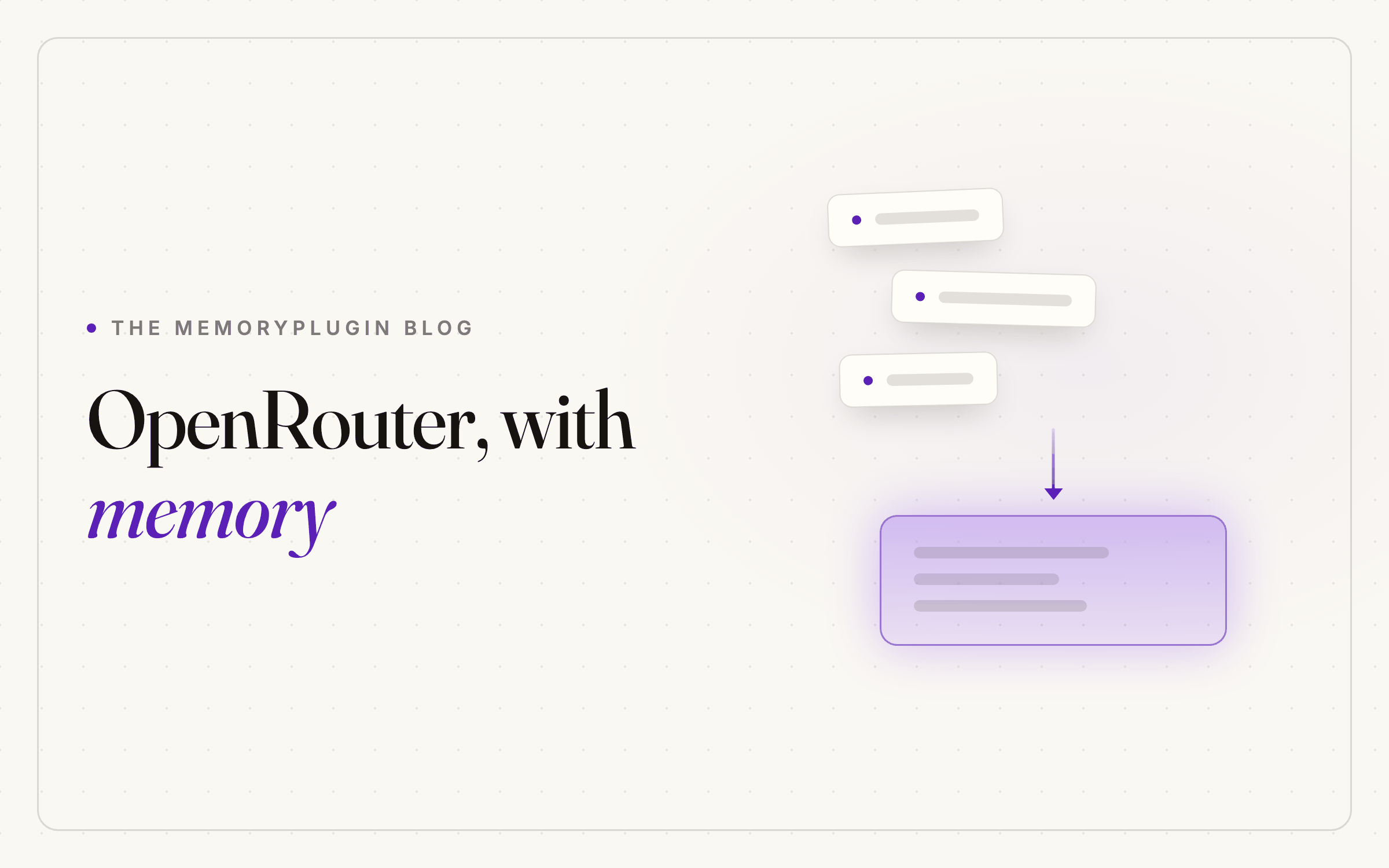
How to Give OpenRouter Persistent Memory Across Any Model
Learn how to add persistent memory to OpenRouter across any AI model. Compare manual context management with MemoryPlugin for seamless cross-model continuity.

You switch models on OpenRouter because that is the point. You might use Claude Opus for writing, GPT for a quick refactor, Llama for a cheap draft, or Gemini because it handles long documents well.
Every switch wipes your context.
This is not a bug. OpenRouter is a routing layer, not a chatbot. It does not store memory. It does not summarize past conversations. It does not carry preferences between models. Each model handles its own state, and none of them talk to each other.
The flexibility that makes OpenRouter useful is the same thing that forces you to start from scratch every time.
This post explains why that gap exists, and how to close it.
Why OpenRouter Has No Memory
OpenRouter is infrastructure. It gives you a single interface to models from OpenAI, Anthropic, Google, Meta, Mistral, and dozens of others, all through one account. You pick a model, send a message, get a response, and switch whenever you want.
It does not add anything on top of that. There is no:
- Account-level memory system
- Saved preferences
- Chat history that syncs across devices
- Projects or standing instructions
OpenRouter passes your messages to whichever model you chose and returns the response. That is the full scope of what it does.
The models themselves are stateless. Each request is processed in isolation and discarded when the response finishes. OpenRouter does not wrap that with a persistence layer, and none of the underlying models can see each other’s conversations.
ChatGPT, Claude, and Gemini build unified product experiences around their models. Memory, custom instructions, and chat history are part of that wrapper. OpenRouter is provider-agnostic, which by default means memory-agnostic.
There is one more wrinkle: OpenRouter’s chat history is local-first. It lives in your browser, not on OpenRouter’s servers. Switch devices, switch browsers, or clear your cache and your conversations are gone. You can export them as JSON and import them manually, but there is no automatic sync.
What OpenRouter Is Missing Compared to ChatGPT, Claude, and Gemini
To see the gap clearly, here is what each platform gives you natively.
Two Ways to Add Memory to OpenRouter
Method 1: Paste Your Own Context Every Time
You can handle context yourself. It is manual, but it works for an active project if you stay organized.
- Use one context doc per project: Plain text is fine. Include your preferences, constraints, and any decisions worth carrying forward. This is the block you will paste later.
- Summarize before you close a chat: Ask the model to compress the session into a dense recap: what you decided, what is open, what is next. Add it to your doc. It takes about thirty seconds and keeps details you would otherwise lose.
- Paste the doc first, then start: Every new chat opens with the doc, followed by "continue from above." One extra step, and the model starts with context instead of empty.
- Re-upload files each time: OpenRouter chats do not share attachments, and summaries describe files without including them. If your last session used a document, upload it again.
- Keep projects separate: One doc per project. Mixing coding, research, and travel plans in the same block wastes context window and pulls the model in three directions at once.
Method 2: Add a Persistent Memory Layer with MemoryPlugin
MemoryPlugin adds a persistent memory layer that sits outside OpenRouter and outside whichever model you route to. Because the memory lives in MemoryPlugin rather than in any model, it stays consistent when you switch models, when you close a chat, and when you come back a week later.
Instead of pasting context into every chat, you save it once. The next time you open OpenRouter, the relevant memories are there.
How MemoryPlugin Works on OpenRouter
Setup is three steps:
- Install the extension: It runs on any Chromium-based browser (Chrome, Brave, Edge, Arc) or Safari on macOS and iOS. Sign in to your MemoryPlugin account.
- Open OpenRouter: Go to openrouter.ai and open the chat. A floating MemoryPlugin button appears on the page.
- Activate for the chat: Click the button to inject memories from your selected bucket into the composer. Send your message. That injection also tells the model how to save new memories as you keep talking.
What MemoryPlugin Does on OpenRouter
- Memory recall and save: Your stored memories get injected as context when you click the button. New memories get saved back as you chat. Switching models mid-session does not lose any of it, because the memory does not live in the model.
- Extract memory pill: Select text in any chat and click Extract memory to save that snippet. Useful for grabbing a decision or piece of output you want to reuse later.
- Cross-tool continuity: If you also use ChatGPT, Claude, Gemini, or any of the 21+ tools MemoryPlugin supports, the same memory is available in every one of them. Work in ChatGPT shows up in OpenRouter, and vice versa.
- Chat history from other tools: If you have synced your chat history from ChatGPT, Claude, Gemini, Grok, or DeepSeek, that history is searchable and available while you chat in OpenRouter.
OpenRouter's strength is model flexibility. Its weakness is that flexibility comes with zero continuity. MemoryPlugin fills that specific gap: one memory layer that stays the same no matter which model, which chat, or which tool you happen to be using.
If you switch models often and are tired of re-explaining the same context every session, MemoryPlugin handles that.