
How to Copy an Entire Claude Conversation (and Use It Later)
The official export, where it stops working, and how to turn your Claude history into something you can actually search and reuse.

You finish a long Claude session. It has your project decisions, your code fixes, your reasoning. Then you close the tab and realize you need that conversation somewhere else. Maybe in a document. Maybe in ChatGPT. Maybe you just want a backup.
Claude does not make this easy. There is no Save button, no Export chat option, and no way to grab the whole thread in a readable format without workarounds.
Why Copying A Claude Conversation Is Harder Than It Should Be
People copy Claude conversations for six main reasons.
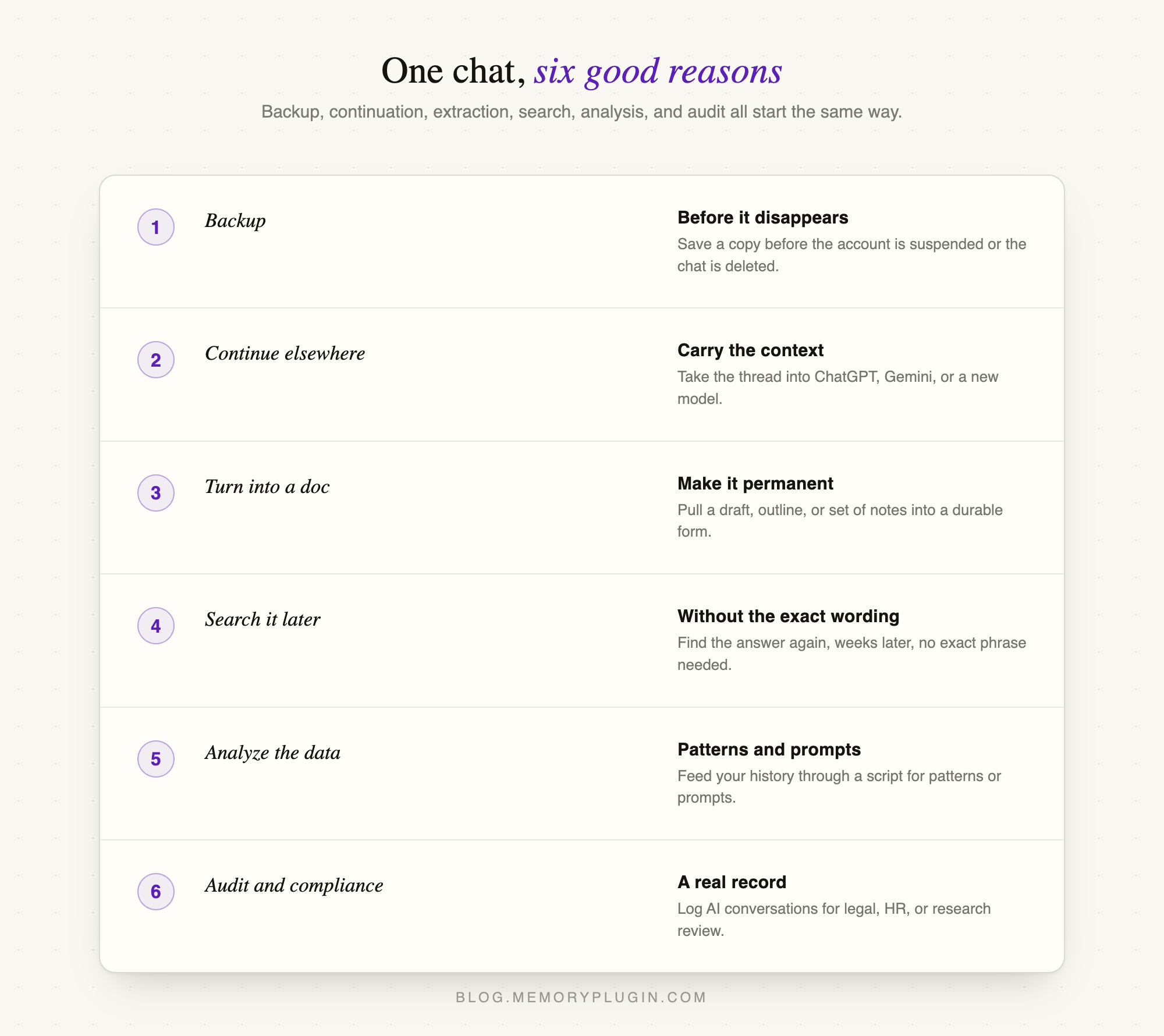
Claude handles none of these natively. The Share feature sends someone else a link to a chat; it does not save anything. The official export is complete, but it’s in JSON. Everything else is manual.
Method 1: Anthropic's official data export
For a complete copy of every conversation in your account, Anthropic has a built-in export. This is the only way to get everything at once, and it is the right starting point for anyone who cares about a real backup.
Here's the path:
- Open claude.ai on a desktop browser. Export does not work in the iOS or Android app.
- Click your initials in the bottom-left corner.
- Select Settings.
- Go to the Privacy tab.
- Under Your data, click Export data.
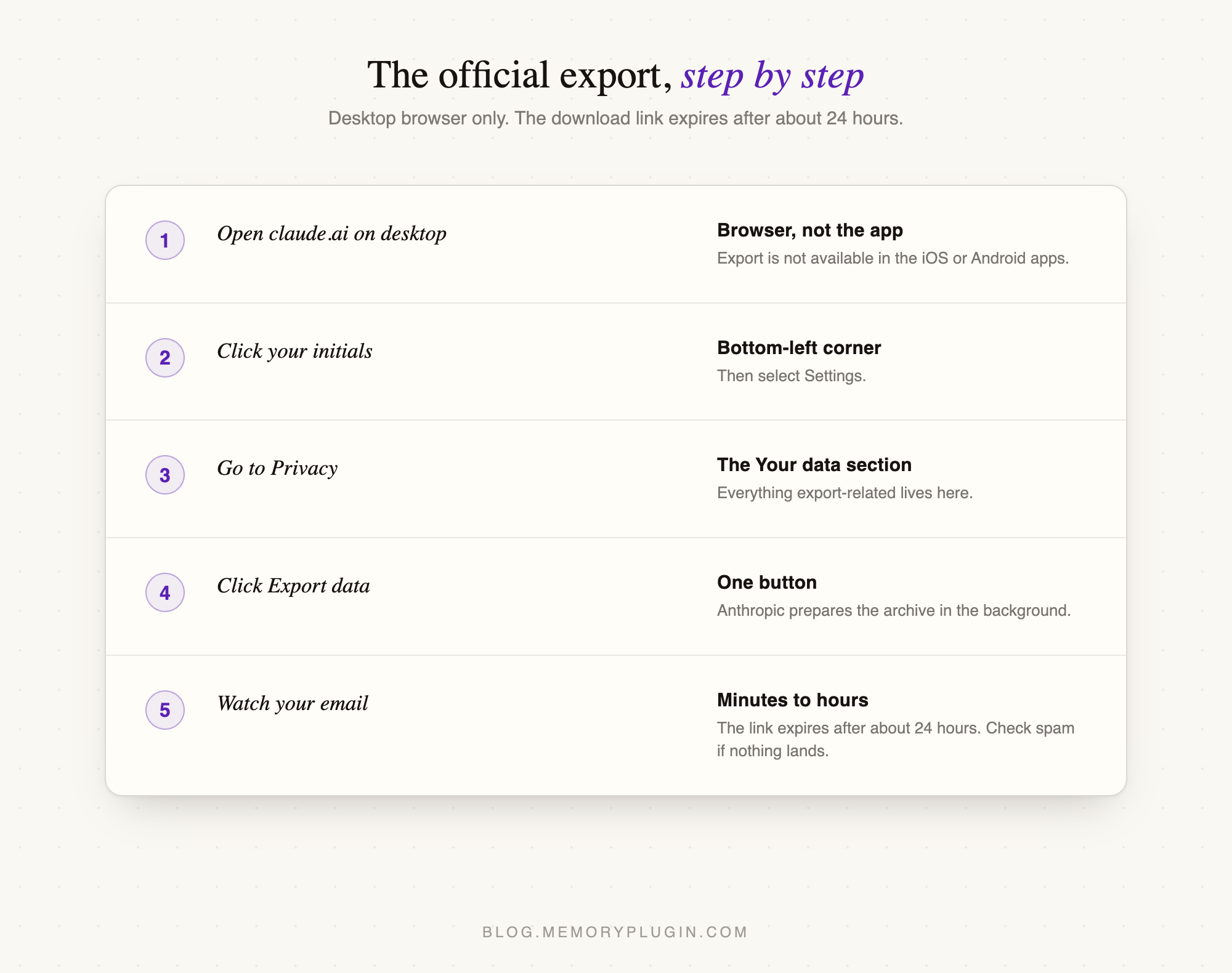
Anthropic emails you a download link. It usually arrives within a few minutes, but can take a few hours if your account is large. The link expires in about 24 hours, so grab it when it lands. If nothing shows up, check spam.
What you get: A ZIP file with a conversations.json holding every conversation, plus account metadata. This is a complete, machine-readable backup of every message.
What you do not get: Claude's memory entries. The ZIP does not include what Claude remembers about you. If you want to save those, open Settings > Memory, review the entries, and copy them out manually. Anthropic has no dedicated memory export button.
Where native methods stop working
The export gives you a snapshot, and a snapshot has a few real problems if your goal is anything beyond disaster recovery.
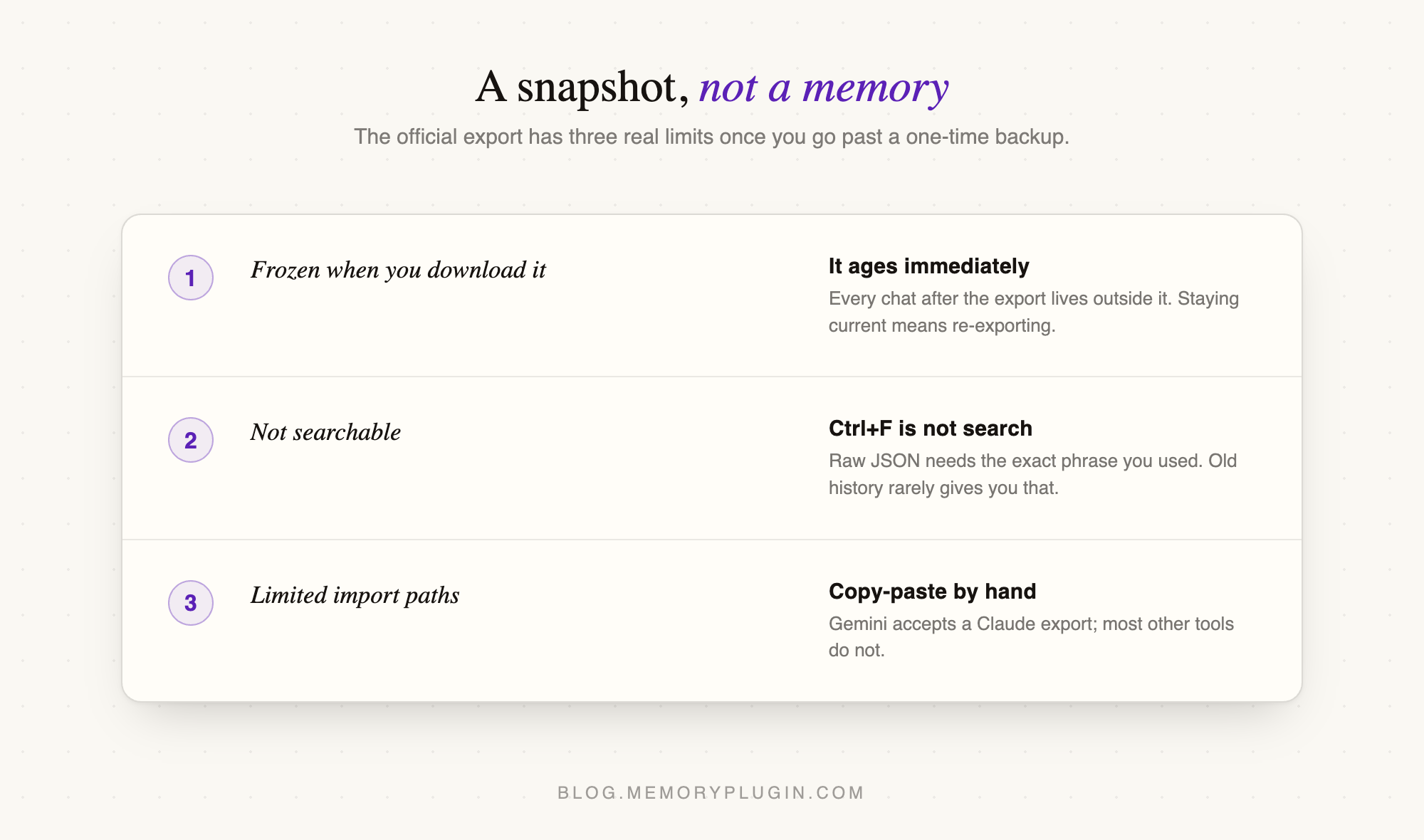
For most people, the export is step one, not the whole solution.
Method 2: Import into MemoryPlugin
MemoryPlugin turns your Claude exports into a living archive you can search and reference. From that archive, you can extract curated facts that load into new conversations automatically across every AI tool you use.
Two layers of MemoryPlugin
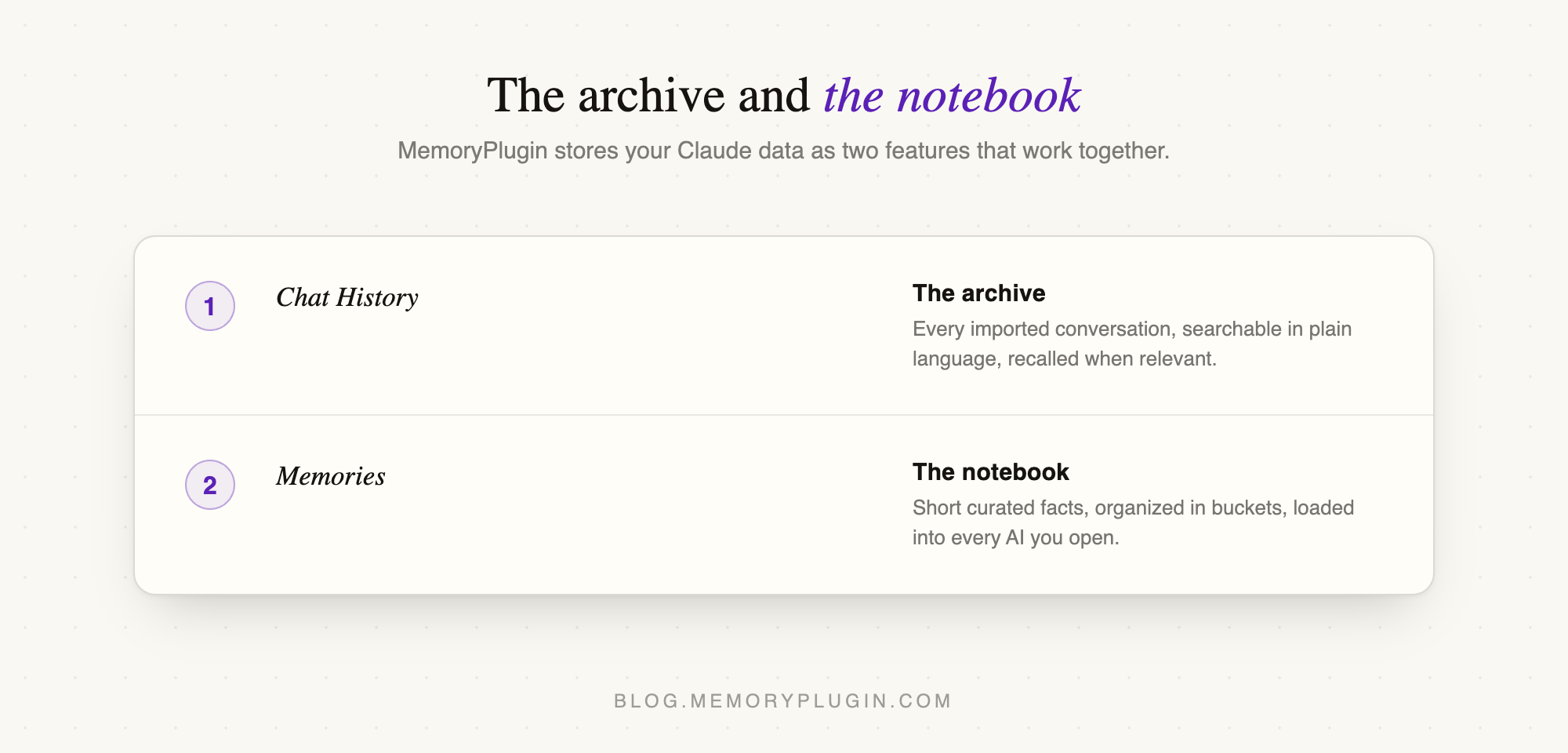
MemoryPlugin stores your Claude data as two distinct features:
Chat History (the archive): Your full imported conversations, searchable in natural language. Recalled on demand when the AI judges your past discussions relevant. Retrieves, reranks, and summarizes the relevant slice rather than dumping raw transcripts.
Memories (the notebook): Curated facts you extract from your chats. Short, organized into buckets, and injected into new conversations automatically across every tool you use.
What you can do with your imported Claude history using MemoryPlugin
Import your full Claude history: Upload Anthropic's ZIP, and MemoryPlugin processes every conversation in the background. No scripts, no cleanup.
Search across years of chats: Ask in plain language. "What did we decide about the API migration timeline?" MemoryPlugin searches your imported Claude conversations and synthesizes an answer with citations back to the source chats.
Search from inside any AI site: Press Cmd+Shift+K (Ctrl+Shift+K on Windows and Linux) on Claude, ChatGPT, or any supported tool. The Chat History modal opens in place, filterable by provider, with one-click jump to the original chat, transcript copy, or link back to where it happened.
Extract structured output from any past chat: Generate an AI summary of a conversation, or pull out specifics like key decisions, action items, ruled-out ideas, style rules, or technical specs. Turns a long debug session into a clean list you can reuse.
Recall in new chats, on demand: With Chat History Recall enabled, the AI pulls a concise, relevant slice from your past Claude conversations when it needs them. Roughly 600 tokens, targeted and summarized. Not a wall of raw transcript.
Carry curated facts across tools: Extract memories from your imported chats, and they inject automatically into ChatGPT, Gemini, Grok, Perplexity, and the rest of the 21+ supported tools.
Buckets keep your memories organized: Group extracted memories by project or client. The right bucket loads automatically in whichever AI you open, so your fintech work does not leak into your travel planning.
Stays current on its own: The browser extension syncs new Claude conversations into your Chat History automatically after the first import.
How to import your Claude chats into MemoryPlugin
Setup takes under five minutes.
- Export your Claude data via Settings > Privacy > Export Data. The ZIP Anthropic emails you is the input. Large exports arrive as several ZIPs linked from a manifest file; download every ZIP and upload them all together.
- Install the MemoryPlugin browser extension for Chrome or Safari, and sign in.
- On the Chat History dashboard, click Import chats, then New Import, pick Claude, and drop in your export files.
- Open Claude, ChatGPT, or any supported tool. Your full chat history is now searchable and recallable, and any memories you extract will inject automatically.
After the initial import, the extension handles syncing. Every new Claude conversation is captured automatically.
Turn your Claude archive into a memory
A ZIP on your drive is a snapshot. It is frozen, unsearchable, and disconnected from the tools you actually use.
MemoryPlugin turns that snapshot into a memory. Your full Claude history becomes searchable in plain language. Relevant details from past conversations get recalled on demand when you need them. Curated facts from those chats follow you into every AI tool you open, automatically.
One import. Every conversation searchable. Every fact portable.
Try MemoryPlugin free for 7 days and import your Claude history in one flow.