
Claude's 100-Image and 100-File Limit Explained
Claude's 100-file limit can bring a long, upload-heavy chat to a hard stop. Learn what counts toward the limit, how it differs from Claude's other upload limits, and how to carry your context into a new chat without re-uploading everything.

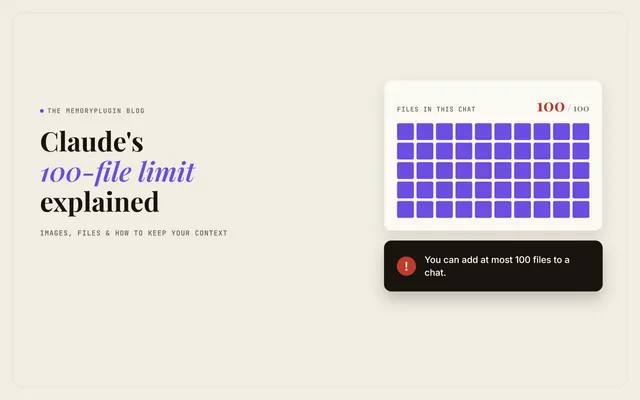
You are deep into a Claude chat, dropping in screenshots or PDFs as you go, and then the upload stops: "You can add at most 100 files to a chat. Consider starting a new chat."
You know what comes next. Start a new chat, and the context you built up across those uploads is gone. You are re-uploading, re-explaining, rebuilding what you already had.
There are two ways to handle this. First, it helps to understand why the limit exists and what counts toward it, because most of what is written about Claude's file limits mixes up three different numbers.
Why Claude Stops You at 100 Files
Claude caps how much media a single conversation can hold at 100.
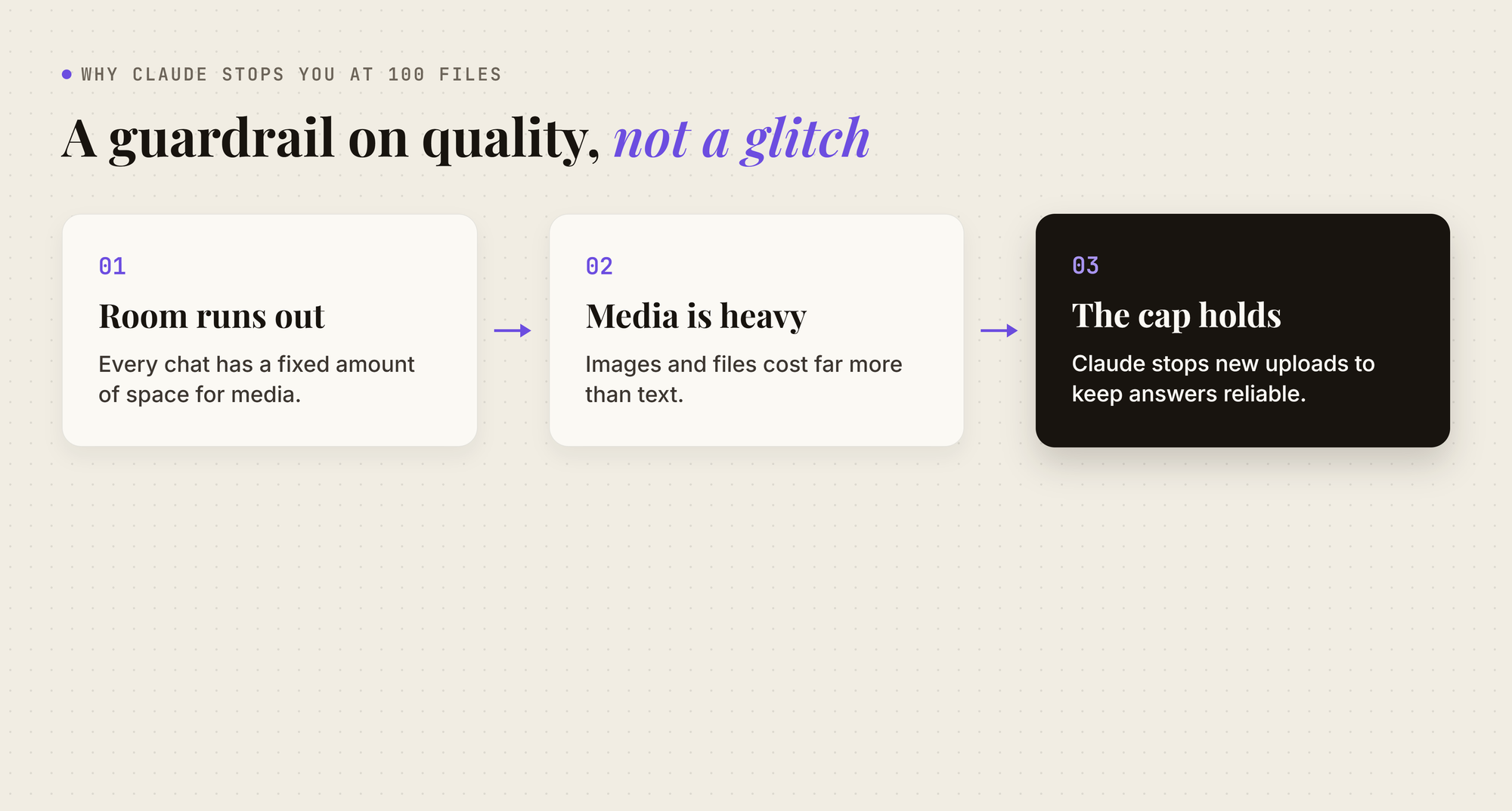
Think of a chat like a desk with room for a hundred sheets. Every screenshot is a sheet. Every file you attach is a sheet. Once the desk holds a hundred, there is no room for the next one, and it does not matter that you added them across twenty messages over two hours. The desk only knows it is full.
That is the piece people miss. This is not a per-message limit, and it does not reset each turn. It adds up across the whole conversation.
What counts toward the 100:
- Every image or screenshot you attach
- Every file you attach. Claude.ai also caps each chat at 100 images, and PDF pages count toward that image cap.
- All of it added up across every message in the chat
What does not count:
- Short text you type or paste into the message (very long pastes become an attachment, and Anthropic doesn't say whether those count)
- Anything in a different conversation
Part of the confusion is that Claude has three separate limits, and most articles blur them together:
- 20 per message: on claude.ai, you can attach up to 20 files in a single message, images and documents combined. Anthropic's own help center words this as "20 files per chat", which is why so many articles quote it as the chat limit.
- 100 per conversation: the running total across every message you send. This is the one that ends long sessions.
- 500MB per file: the limit for chat uploads. Files in Project knowledge are capped at 30MB each, and images at 10MB.
The 100 cap is specific to claude.ai. Anthropic's other products allow more:
- claude.ai: 100 files per chat, plus 100 images (PDF pages included)
- The API: up to 600 images or PDF pages per request on current models, and 100 on older models with a 200K-token context window
- Claude Code: follows the API limit, and drops the oldest images and PDFs by itself as a long session gets close
- Managed Agents: up to 500 files per session
Different surfaces, same number.
Why the cap likely exists: images and PDF pages are expensive in a way text is not. Claude reads an image in small patches, and a single 1080p screenshot costs about 2,700 tokens on current models. A hundred of them add up fast on top of a long conversation.
Anthropic doesn't publish the reason, but the cap works as a guardrail. It is also enforced before your request reaches the model, which is why no wording trick gets around it.
The catch is what the guardrail leaves you with: a full chat is a dead end, and everything in it is stuck there.
Method 1: Work Around the 100-File Limit by Hand
The manual approach is to spend your hundred sheets carefully and start over when you run out. It works, as long as you stay on top of it.
- Combine images before you upload: stitch related screenshots into one image instead of ten. Same information, a fraction of the count.
- Upload only what you need from long documents: split a big PDF, or pull the relevant text out and paste that. Claude.ai only reads the visuals in PDFs of 100 pages or fewer, and longer PDFs, up to 1,000 pages, are read as text only.
- Paste text instead of attaching it: anything that is really just words belongs in the message, not as a file.
- Keep reusable reference material in a Project: Project knowledge is set up once for the whole Project, instead of being uploaded again into each chat.
- Start a fresh chat for a new task: the count resets to zero in a new conversation, so do not drag an upload-heavy chat into unrelated work.
- Carry a summary into the new chat: when a chat does fill up, click the MemoryPlugin button in that chat to export it, then paste the export into our free Continue Long Chats tool. It turns the conversation into a structured summary, covering your initial goals, key developments, outcomes, and how to continue, which you paste as the first message of the new chat.
The catch is the one you hit with every manual workaround: you are the one doing the accounting. You have to remember what you have spent, decide what to leave out, and carry the context across by hand when you start over. One long session and you are back at the wall, rebuilding from scratch.
Method 2: Turn Your Uploads Into Memory With MemoryPlugin
Every image you upload stops being useful the moment the chat ends. You spent a hundred uploads getting Claude to a useful state: it understood the bug across those error screenshots, the layout in that design review, the pattern in those dashboards. Then the limit forces a new chat, and that understanding is gone. The pictures are still on your drive. What Claude worked out from them is not.
MemoryPlugin keeps that understanding past the one conversation. It will not raise the 100 cap, and it does not bring your old screenshots back for Claude to look at again. What it keeps is what Claude learned from them.
How it solves the 100-file problem
Here is how MemoryPlugin carries your work from a full chat into a new one:
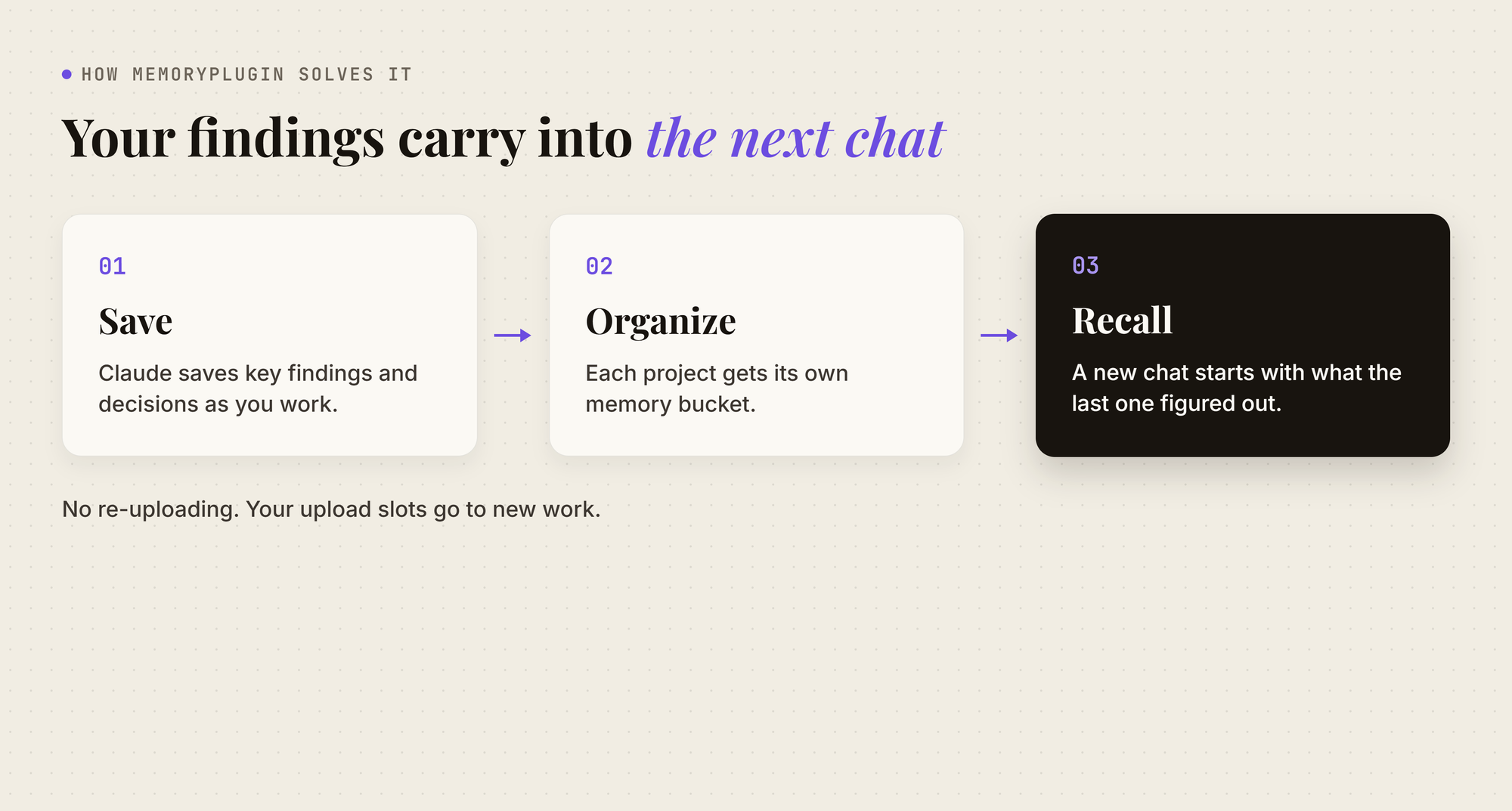
- It saves what Claude worked out: with the connector, Claude can save key findings and decisions to MemoryPlugin as you work, and saves anything you ask it to remember. With the browser extension, you can also highlight any line in the chat and save it yourself.
- It keeps them in memory buckets: each project gets its own bucket of memories, so a design review and an unrelated debugging session stay separate.
- It brings them into your new chat: when you hit the limit and start over, Claude pulls your memories from MemoryPlugin. It starts knowing what the last chat figured out, without you re-uploading a single screenshot.
So hitting 100 just means opening a new chat. Your findings come with you, and your upload slots go to new work.
The same memory works across 21+ AI tools, including ChatGPT, so it is not tied to one chat or one app.
How to Connect MemoryPlugin to Claude
MemoryPlugin connects to Claude in two ways, and they do different jobs:
- Remote MCP connector: lets Claude search and save your memories. No install. Add it once on the web or desktop app, and it works on mobile too. Claude's Free plan allows one custom connector.
- Browser extension: syncs your Claude conversations into searchable chat history, and lets you highlight any line in a chat to save it as a memory.
Setup takes a few minutes:
- Create a MemoryPlugin account.
- Add MemoryPlugin as a connector in Claude using the remote MCP server URL, then sign in and approve access.
- Install the browser extension and sign in, if you also want chat history sync.
- Keep working. If Claude ever skips your memories in a new chat, ask it to check MemoryPlugin before answering.
Managing the Limit by Hand vs MemoryPlugin
Hitting the 100 limit means a single chat has taken in all it can. That is a fine reason to start a new one. It should not mean re-deriving everything the last chat already worked out.
Try MemoryPlugin free for 7 days and keep what your uploads taught Claude.