
How to Back Up Your AI Memory (ChatGPT, Claude, Gemini, and More)
Back up your AI memories before a reset, account change, or switch to another tool. Learn how to export or save memory from ChatGPT, Claude, Gemini, and Perplexity, and keep it updated with MemoryPlugin.

You can download your chats from almost every AI tool. Your AI memory is a different story.
Over months of use, ChatGPT, Claude, and the rest learn your role, your projects, and the way you like answers written. Most of that sits behind settings pages with no download button, and one wrong click, a policy change, or a switch to a new tool can wipe it out.
Below is how to back up memory on each major AI tool, which free tools make it faster, and how to keep a backup that stays current.
Why You Should Back Up Your AI Memory
Chat history and AI memory are two different things. Most backup habits only cover chats, which leaves memory exposed in four ways:
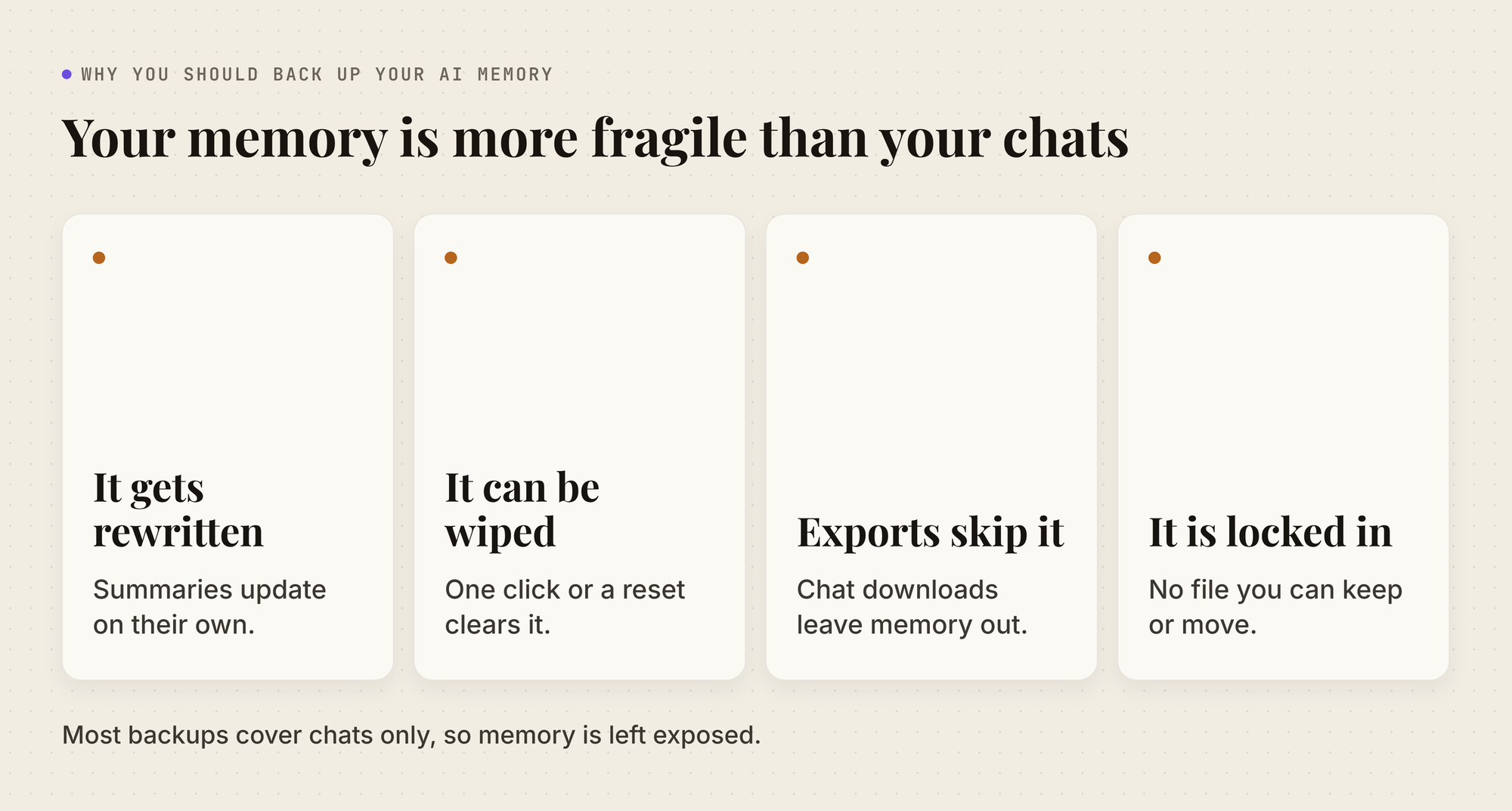
- It gets rewritten: ChatGPT builds a memory summary that updates on its own, so what's stored today may not match last month.
- It can be wiped: a single "Delete and turn off memory" click, a closed account, or a memory reset clears it.
- Data exports skip it: ChatGPT's export gives you your chats and account data, not a memory file.
- It's locked to one app: even when you can see your memory, there's usually no file you can keep or move.
Which AI Tools Let You Export Memory
Exporting means the AI tool gives you your memory as a downloadable file. Only Claude does that. For the other tools, you save a copy yourself by copying what's shown in settings or asking the AI to write it out:
The Prompt That Gets Memory Out of Any AI
When a tool has no export button, the most reliable backup is to ask the AI to write out what it remembers. Anthropic publishes a prompt for this, to help people move memory from other AI tools into Claude.
This shorter version works in any AI with memory:
"List every memory you have stored about me, plus any context you've learned about me from past conversations. Put everything in one code block, one entry per line, with the date saved if you have it. Keep my words verbatim. Do not summarize, group, or leave anything out. Afterward, tell me whether that is the complete set."
Save the answer as a text file. The ChatGPT and Gemini steps below use it.
How to Back Up ChatGPT Memory
ChatGPT has no memory export, and its data export under Settings > Data Controls contains your chats and account data, but no memory file. OpenAI also says its memory summary doesn't include every detail ChatGPT can reference, so a full backup combines what you can see with what you ask for.
Save Your ChatGPT Memory Summary
- Copy the summary: open Settings > Personalization > Memory, open your memory summary, and copy it into a text file. If you use the older experience, copy your Saved memories instead.
- Ask for the rest: run the prompt above in a new chat, and save the answer. OpenAI notes you can ask ChatGPT what it remembers, and the summary doesn't show everything.
Clean Up Your ChatGPT Memory Backup
The summary and the chat answer will overlap. Paste both into MemoryPlugin's free ChatGPT Memory Exporter, and it removes duplicates and near-duplicates and gives you one tidy Markdown file. It runs in your browser, so nothing is uploaded.
How to Back Up Claude Memory
Claude is the easiest major AI tool to back up. Anthropic says all memory data is included in its data exports, so one download covers both your chats and your memory.
Export Claude Memory With Your Data Export
- Request the export: in the Claude web app or Claude Desktop, go to Settings > Privacy > Export data. The mobile apps can't run an export.
- Download the files: Anthropic emails you a download link. Larger accounts get a manifest file that links to several ZIPs, so download all of them.
- Find your memory: in recent exports, your memory is in a file called memories.json.
On Team and Enterprise plans, you can export your own chats once an owner turns on member exports, and the Primary Owner can export the whole organization's data from Organization settings > Data and privacy.
Read Your Claude memories.json File
The file is hard to read on its own. Drop it into MemoryPlugin's free Claude Memory Visualizer to see every memory Claude keeps and when each one last changed.
You can then download the set as Markdown. The tool runs entirely in your browser.
Copy Claude Memory Without Waiting for an Export
For a quicker copy, open Settings > Your Claude and select Manage next to Your memory, where everything Claude remembers is listed under Topics. Or ask Claude directly, as Anthropic suggests:
"Write out your memories of me verbatim, exactly as they appear in your memory."
Save the answer as a text file.
How to Back Up Gemini Memory
Gemini keeps two kinds of memory: instructions you write yourself, and what it learns from your past chats. Google offers no export for either. If you're in the US on a Google AI plan, you can view a memory summary. Everyone else has to ask for it with the prompt.
Save Your Instructions for Gemini
You wrote these yourself, but after months of adding to them, few people keep a copy anywhere else. Saving one also lets you reuse them in another AI tool:
- Open your settings: go to Settings & help > Personal Intelligence.
- Find your instructions: open Instructions for Gemini.
- Copy them: paste each instruction into a text file.
Back Up What Gemini Learned From Your Chats
Gemini builds this memory from your past chats, so there are two ways to save it:
- Ask for it: run the prompt above in a Gemini chat and save the answer. Treat it as a best-effort copy, since Gemini may not list everything.
- Save the source chats: Google Takeout exports your Gemini chats (choose My Activity > Gemini Apps), which is what this memory is built from. It doesn't export a list of what Gemini learned.
Memory of past chats only works on personal Google accounts, for users 18 or older, with Keep Activity turned on.
How to Back Up Perplexity Memory
Perplexity has no memory export, but it keeps your memory as pages you can open and read, so you can copy them one by one:
- Open your settings: go to Settings > Memory.
- Open your memory pages: click Browse next to Browse Brain.
- Copy your Notes: under Notes, open each page, such as Interests, Tools, or Work, and paste its contents into a text file. Use Search memory to find a specific detail.
The other sections on that page, Concepts, Entities, and Workstreams, belong to Brain, which is only available on Max and Enterprise Max plans. If you have one of those plans, copy those pages too.
Why Manual AI Memory Backups Go Stale
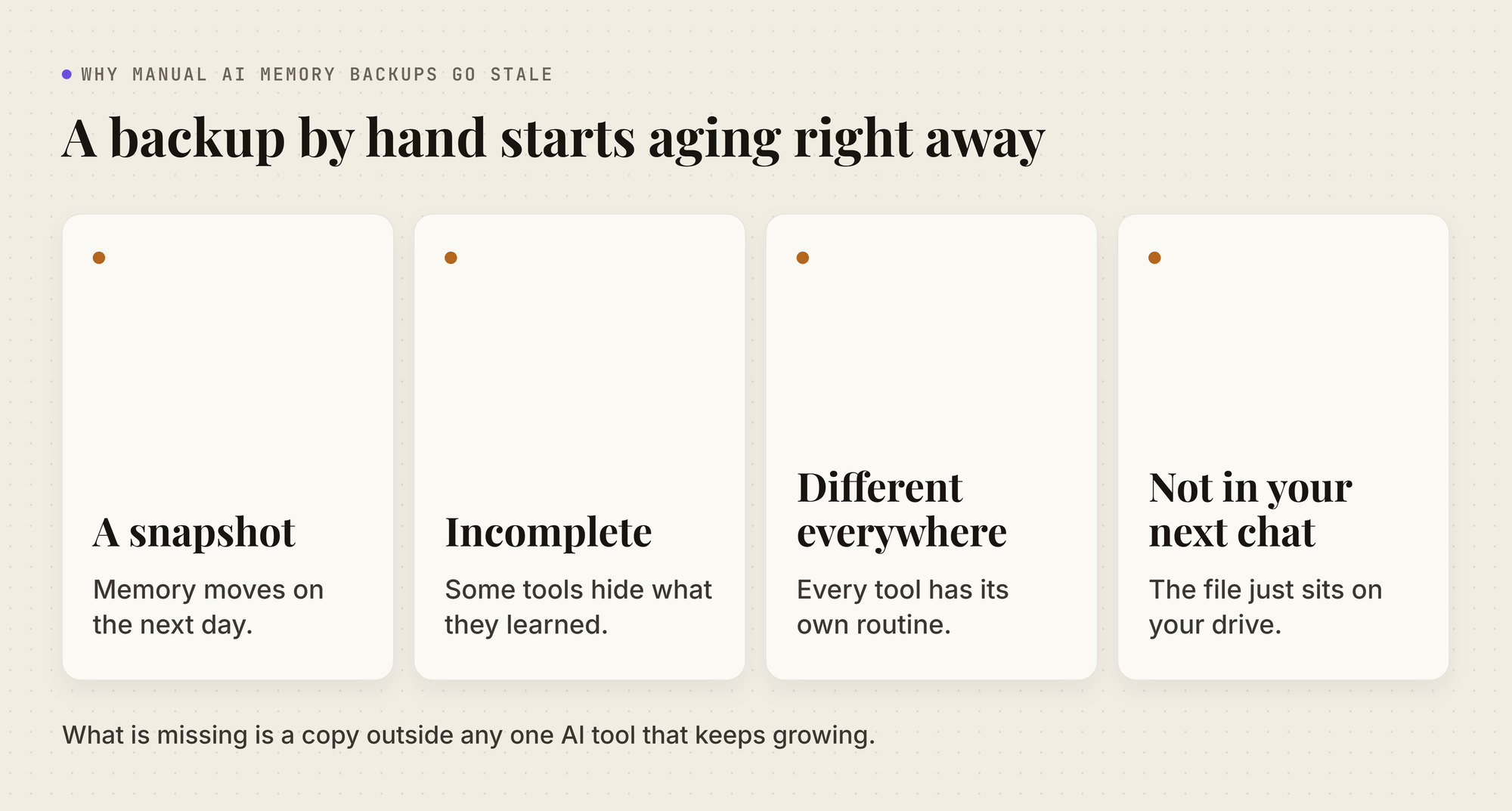
Following the steps above gives you a real backup. Doing it by hand also has limits:
How to Keep a Live Backup of Your AI Memory With MemoryPlugin
Every manual backup above has the same weakness: your memory still lives inside each AI tool, and the copy you saved starts falling behind as soon as you close the file.
MemoryPlugin is a memory layer that keeps your memory outside your AI tools from the start. It works across 21+ AI tools, including ChatGPT, Claude, and Perplexity, and keeps the same memory in sync between them. Save something in ChatGPT, and it's there the next time you open Claude.
The copy you rely on is the original, so a reset, a policy change, or a switch to a new tool doesn't touch it.
How MemoryPlugin Builds and Uses Your Memory
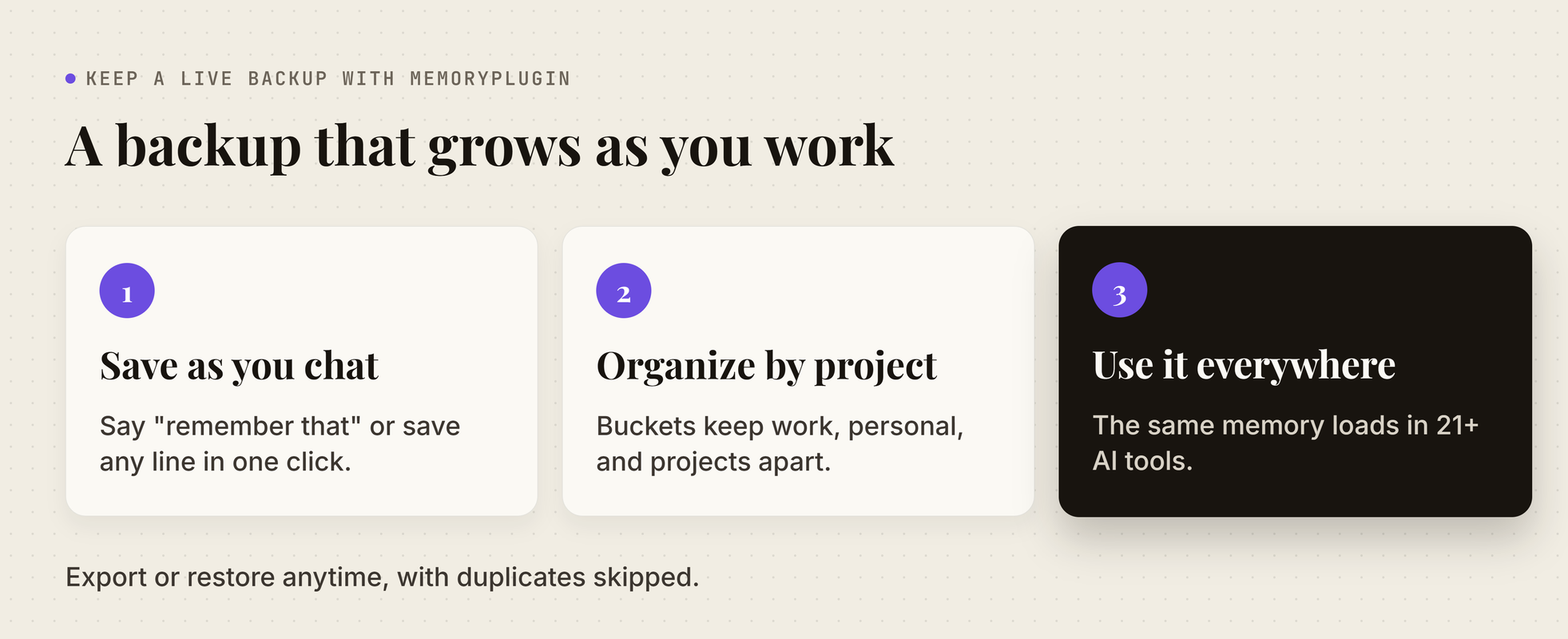
A backup only helps if it's current. MemoryPlugin keeps it current by building your memory as you work:
- Save as you chat: tell your AI "remember that…", or highlight any line and save it in one click. The AI can also save important details on its own.
- Organize by project: each memory goes into a bucket, so work, personal, and each project stay separate.
- Use it everywhere: in the browser, load a bucket with the MemoryPlugin button or auto-inject. In MCP apps like Claude Desktop and Cursor, the AI pulls the memories it needs itself.
Every memory is a plain entry in your dashboard that you can read, edit, or delete, so you always know what's in your backup.
Export and Restore Your Memories in Any Format
When you want a file of your own, open a bucket in your MemoryPlugin dashboard and click Export (repeat for each bucket):
- CSV: keeps each memory's text, date, bucket, and category, so it's easy to review in a spreadsheet.
- JSON: a good format to keep if you plan to restore later.
- Text: a plain list you can read or paste anywhere.
- Copy to Clipboard: copies your memories with instructions attached, ready to paste into any AI.
To restore, import a CSV, JSON, or text file into a bucket. MemoryPlugin skips memories already in that bucket, so re-importing the same file never leaves you with duplicates.
Back Up Your AI Chat History Too
Your memory is built from your conversations, so it helps to keep those as well. MemoryPlugin's Chat History imports the data exports from ChatGPT, Claude, and TypingMind into one searchable archive, and the browser extension keeps new ChatGPT, Claude, Gemini, Grok, and DeepSeek chats syncing on their own. Core keeps your last 500 conversations, and Pro has no limit.
Export a single conversation, or everything as a ZIP, in Markdown or JSON from the dashboard. Everything is encrypted, never used to train models, and yours to export or delete at any time.
Manual AI Memory Backup vs MemoryPlugin
Keep Your AI Memory Safe in One Place
MemoryPlugin keeps one memory in sync across 21+ AI tools, organized by project, with your chat history searchable and everything exportable anytime.
Start your free 7-day trial and keep a live backup of your AI memory.