

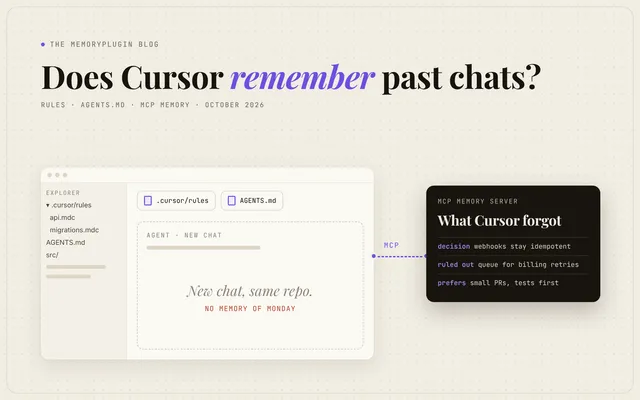
Quick answer: No. Cursor doesn't remember past chats. A new Agent chat starts with your prompt, your codebase and any Rules that apply (.cursor/rules, User and Team Rules, AGENTS.md). Cursor removed its Memories feature in version 2.1 (November 2025). For memory that lasts, use Rules for conventions and an MCP memory server for decisions and context.
(Checked against Cursor's docs and forum, October 16, 2026.)
On Monday you explain why the webhook handler must stay idempotent. On Tuesday a new chat suggests a retry loop that double-charges customers. Cursor did have memory for about six months. Here's what replaced it, and how to close the gap. If you'd rather skip ahead to the lasting fix, see MemoryPlugin for Cursor.
Does Cursor remember previous chats?
Not on its own. Cursor's Rules docs put it plainly: "Large language models don't retain memory between completions. Rules provide persistent, reusable context at the prompt level."
Did Cursor remove Memories?
Yes. Here's the timeline:
| Date | What happened | Source |
|---|---|---|
| Jun 4, 2025 | Cursor 1.0 ships Memories in beta: "Memories are stored per project on an individual level." | 1.0 changelog |
| Nov 24, 2025 | Cursor staff: "The Memories feature was removed starting from version 2.1.17." | Forum |
| Jan 7, 2026 | Staff again: "intentionally removed starting in version 2.1.x, so the UI to manage them is no longer available." | Forum |
| Oct 2026 | The old Memories docs URL (/docs/context/memories) redirects to the Rules page. Cursor's docs index has no Memories page. |
Rules docs |
Removing the feature didn't always remove the memories. In January 2026, a user on version 2.2 reported the agent "still reporting access to 32 memories" and wrote, "I can't find any way to remove those from context." Staff suggested asking the agent to "Delete all memories." For another user, the agent answered: "The update_memory tool is not available on the system." The fix that worked was rolling back to 2.0.77, deleting the memories in Settings, and updating again (forum).
Two newer features use the word memory, and both have a narrow scope:
- Automations (March 2026) have Memories that "let the agent read and write persistent notes across runs for the same automation" (docs).
- Projects (beta, September 2026) keep "a set of files that sync across every cloud and local machine its agents use" (docs). Projects run on Cloud Agents, so they aren't available on Free or Plus.
Neither reaches an ordinary Agent chat.
Cursor Rules vs AGENTS.md: what goes where?
When a rule applies, Cursor puts its contents "at the start of the model context."
- Project Rules:
.mdcfiles in.cursor/rules, version-controlled. Each is set to Always Apply, Apply Intelligently, Apply to Specific Files or Apply Manually. Plain.mdfiles in that folder are ignored. AGENTS.md: plain markdown in the root or any subdirectory. Nested files are "combined with parent directories, with more specific instructions taking precedence."- User Rules: global, in Customize → Rules. Since 2.1,
~/.cursor/rulesloads too. - Team Rules: set from the dashboard on Team and Enterprise plans. Precedence is Team → Project → User.
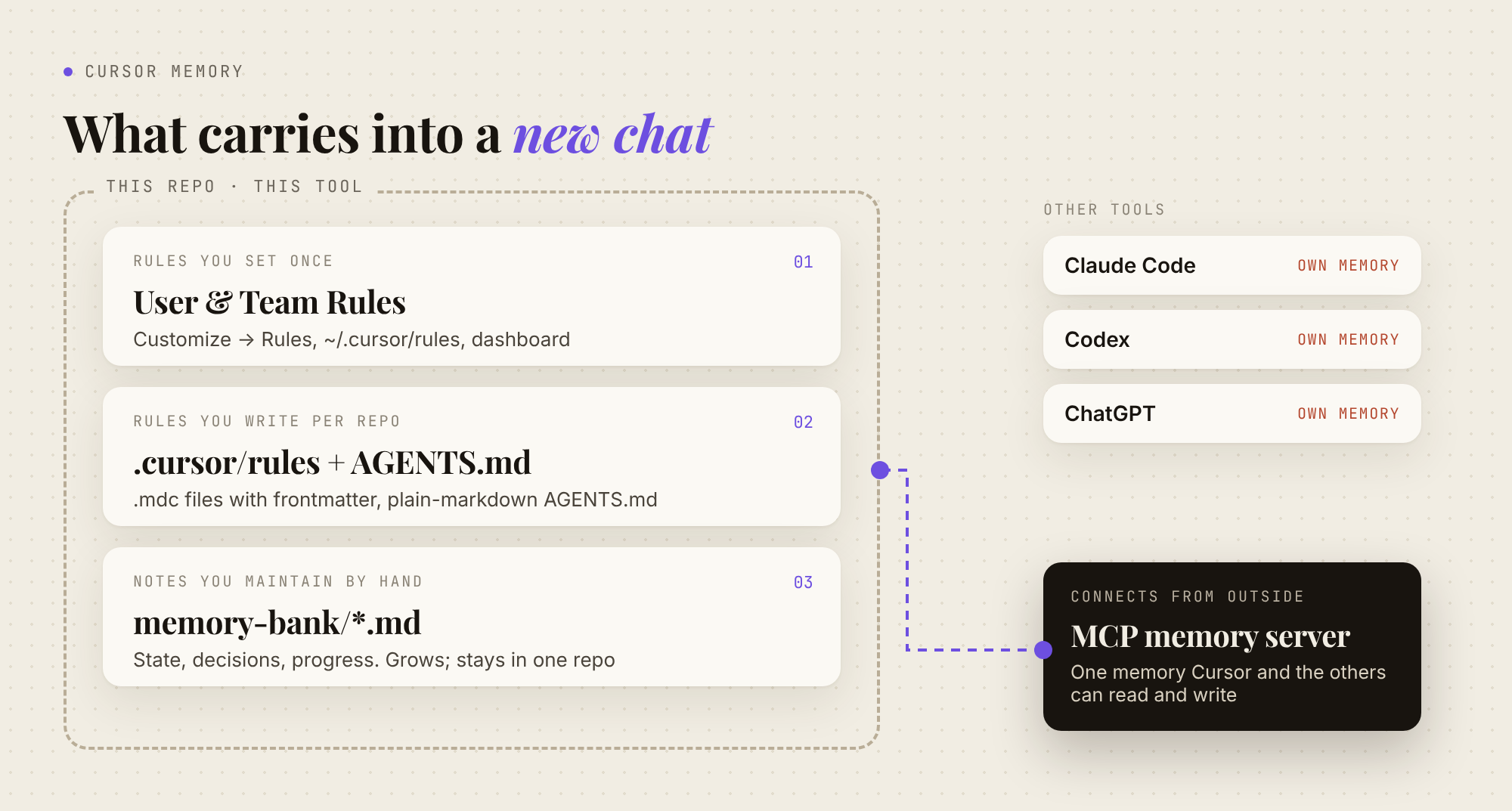
Use .cursor/rules when a rule should apply only to certain files, and AGENTS.md for plain instructions that other agents can read too. Cursor's advice is to keep rules "under 500 lines" and to add them "only when you notice Agent making the same mistake repeatedly."
What is a Cursor memory bank?
It's the community workaround: a folder of markdown files (brief, current state, decisions, progress) plus a rule telling the agent to read them at the start of a task and update them at the end. It works, and it's free. It also means managing memory by hand. The files grow, and they live in one repo. Anything true about you rather than the repo has nowhere to go.
Cursor Rules vs Memories: what's the difference?
Rules hold rules, not history. A rule knows your migration conventions. It doesn't know you ruled out a queue last week, or why, and a decision you made while planning in ChatGPT never reaches a rule at all. Rules are instructions you write and ship with the repo. Memory is what builds up over time: decisions, preferences, the state of the work.
| Option | Carries | Written by | Scope | Reaches Claude Code, Codex? |
|---|---|---|---|---|
.cursor/rules |
Conventions, workflows | You (or /create-rule) |
One repo | No |
AGENTS.md |
Plain-markdown instructions | You | One repo | Yes, the same file |
| Memory bank | State, decisions, progress | You and the agent, by hand | One repo | Only if you point them at it |
| Automations / Projects memory | Notes for one automation or Project | The agent | That automation or Project | No |
| MCP memory server (hosted) | Preferences, decisions, cross-project context | The agent; you edit | Your account | Yes |
As of October 2026.
How do I add a Cursor memory MCP server?
Cursor supports MCP servers over stdio, SSE and Streamable HTTP. You configure them in .cursor/mcp.json for one project or ~/.cursor/mcp.json for every project (MCP docs). A memory server exposes tools like "store" and "search". The agent decides when to call them, and Cursor asks for approval by default. A local stdio server stays on one machine, while a hosted one follows you to any client. For the trade-offs, see converting a local MCP server to a remote one and why MCP isn't always the best integration choice.
What's the best Cursor memory plugin?
MemoryPlugin is the one I build, so weigh this accordingly. In Cursor, it's a hosted MCP server. Add it to ~/.cursor/mcp.json:
{
  "mcpServers": {
    "memoryplugin": {
      "url": "https://www.memoryplugin.com/api/mcp/mcp"
    }
  }
}
Cursor opens a browser sign-in (OAuth, no API key). From then on, the agent can search your memories, store new ones in buckets (work, personal, per-project), and update or move them when you correct something. The full tool list is on the MCP server page.
A server only helps if the agent actually calls it. The open-source agent skills (npx skills add memoryplugin/agent-skills) teach Cursor to check memory before assuming and to save what matters before finishing. Every save shows a one-line receipt you can veto. A never-store list keeps out secrets, API keys, debugging noise, and anything the repo already records.
How do I share memory between Cursor, Claude Code and Codex?
Share rules through AGENTS.md. Cursor and Codex read it natively. Claude Code reads it when there's no CLAUDE.md or CLAUDE.local.md in your working directory or above it (Claude Code memory docs). Share everything else through one memory server. Save a decision in Cursor, and Claude Code has it in your next session, as do ChatGPT, Claude and the other supported tools.
Coding-agent memory series: Does Codex remember past conversations? · Claude Code memory explained · Meet MemoryPlugin Sync
If you've explained the same constraint to Cursor twice this week, set up MemoryPlugin for Cursor. Every subscription starts with a 7-day free trial.
FAQ
Did Cursor remove Memories?
Yes. Cursor staff said Memories were "removed starting from version 2.1.17" (Nov 24, 2025), and the old docs URL now redirects to Rules. Automations and Projects have their own scoped memory. Regular Agent chats don't.
Is Cursor memory per project?
Rules in .cursor/rules and AGENTS.md are per repo. User Rules and ~/.cursor/rules are global. The retired Memories were "stored per project on an individual level." An MCP server in ~/.cursor/mcp.json is available in every project.
Where are Cursor memory files stored?
Project Rules live in .cursor/rules/*.mdc, and AGENTS.md lives in the repo. Automation memories are a named entry (MEMORIES.md by default) that "exists outside the agent's working filesystem." Project files are in the Project's Context tab.
Does Cursor memory work with Claude models?
Cursor's docs don't tie Rules or MCP to any model. They say rule contents "are included at the start of the model context," and that Cursor "automatically uses MCP tools" listed under Available Tools "when relevant." The exceptions they list: rules "do not impact Cursor Tab or other AI features," and User Rules aren't applied to Inline Edit (Cmd/Ctrl+K).