
How to Free Up Memory in ChatGPT (and Never Run Out Again)

ChatGPT tells you memory is full, and the obvious move is to go delete things. That works for a while. Then it fills up again, and you are back in Settings pruning the same list a few weeks later.
Freeing up space is worth doing, and this guide walks through exactly how. But hand-clearing is a chore that keeps coming back, because ChatGPT's memory was built to stay small. The lasting fix, a tool like MemoryPlugin that holds your context outside ChatGPT with no practical ceiling, is where we end up. Manual cleanup first, then the fix that stops the wall from returning.
What "Memory Full" Means in ChatGPT
ChatGPT keeps two different things that both get called "memory," and only one of them fills up.
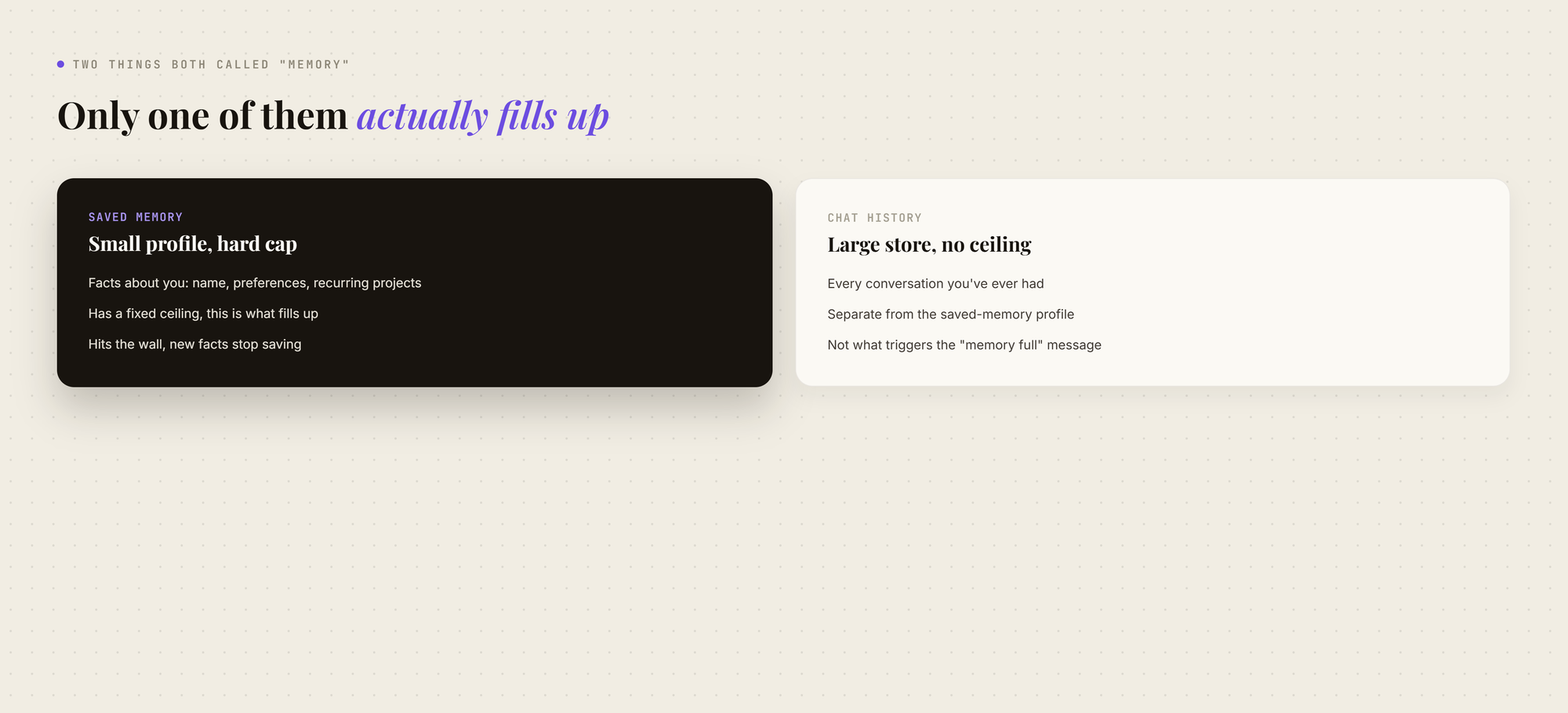
When the notice appears, your memory has hit its ceiling. New long-term facts stop being added, while everything already saved keeps working and the model answers normally. That is why the wall is easy to miss. Nothing breaks, you just stop building new context from that day on.
One 2026 note: in June, OpenAI rolled out a new memory system built on what it calls dreaming. It builds a memory summary from your chats in the background, and it came with double the memory capacity for Plus and Pro users.
It reached Plus and Pro users in the US first, with Free and Go users following. Paid plans also manage memory automatically, pushing less important memories to the background, so the "memory full" message shows up far less often on them.
How Much Memory Does ChatGPT Really Have?
Less than most people assume. OpenAI does not publish an exact number, and the amount depends on your plan. What is clear:
- The store is small: a short profile of facts about you, not a transcript of your life.
- Paid plans hold more: Go holds more than Free, and Plus and Pro got double the capacity in June 2026.
- Every plan still has a cap: paying more raises the ceiling, but it does not remove it, and there is no way to buy extra memory on top of your plan.
The gap between what people expect and what is stored is the whole problem. People lean on that small profile as long-term storage. It was built to hold a paragraph, not a relationship.
How to Free Up Memory in ChatGPT Step by Step
The mechanics are quick, and everything lives in one place.
- Open Settings > Personalization > Memory.
- Click Manage to open your memory summary, or Manage memories if you use the legacy saved-memories list.
- Delete anything stale, duplicated, or no longer useful.
- To start clean, delete all memories at once instead of one at a time.
Deleting frees the space right away, and ChatGPT starts saving new context again. You will usually reclaim more room than you expect, because a full memory is mostly clutter.
Which ChatGPT Memories to Delete First
Not every memory earns its slot. Work through the list in this order, and it clears fast:
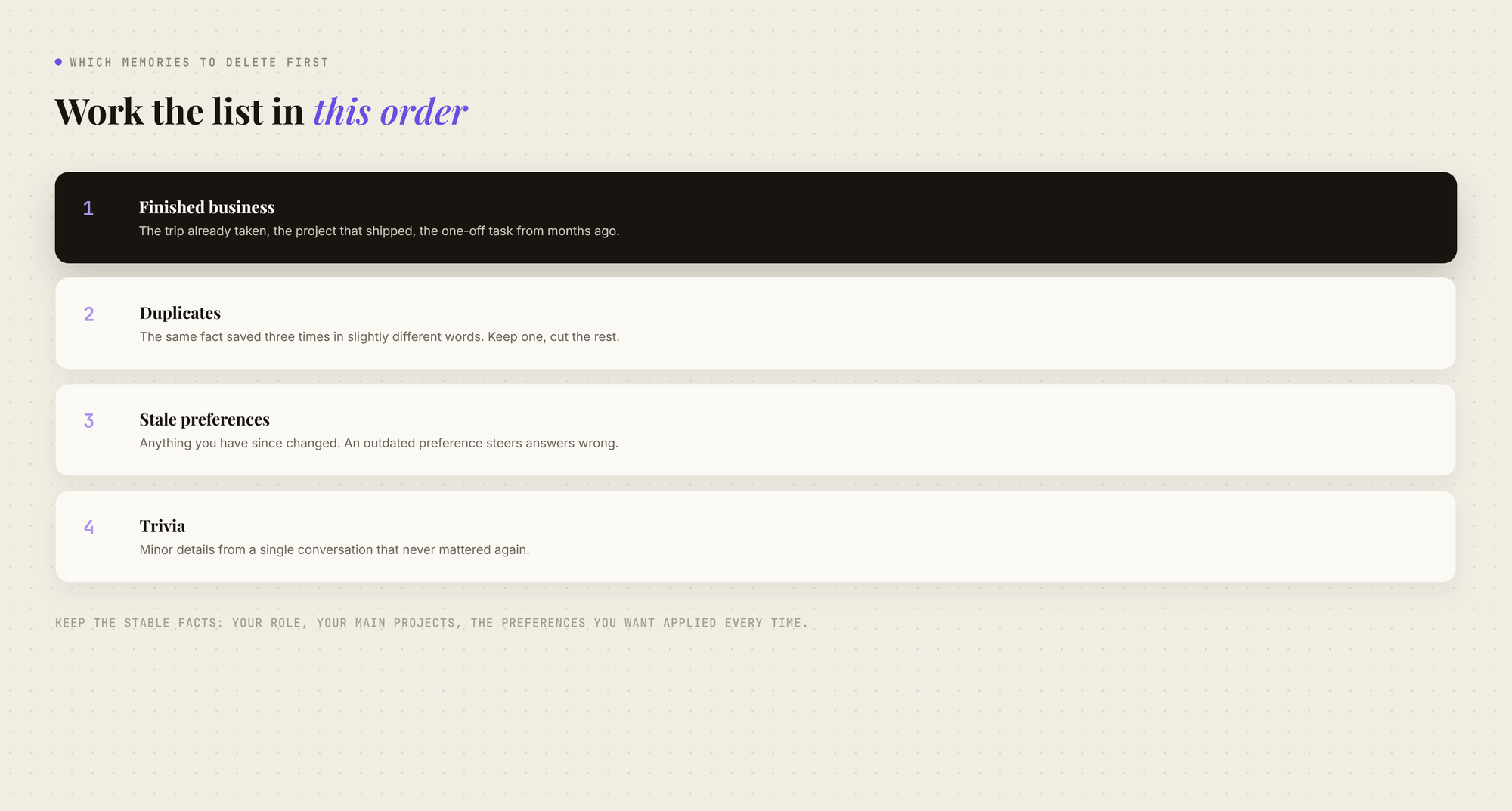
Keep the stable, genuinely useful facts: your role, your main projects, and the preferences you want applied every time. Those are worth protecting the space for.
What Clearing ChatGPT Memory Does Not Delete
Deleting memories feels drastic, so it helps to know what stays put. Clearing your memory does not remove:
- Your chat history: every past conversation is still there, in a separate store.
- Your Projects: grouped chats, files, and instructions are untouched.
- Your Custom Instructions: these live in their own layer and do not count against the memory cap.
That last one is a free release valve. Standing preferences you want applied everywhere, such as tone, format, and how you like answers, belong in Custom Instructions rather than memory. Move them there and you stop spending scarce memory space on them.
One catch: ChatGPT learns from your past chats. If the chats that taught it a detail are still there, a memory you deleted can come back. To remove something for good, delete those chats too, or tell ChatGPT directly to forget it.
How MemoryPlugin Gives ChatGPT Memory That Never Runs Out
The reason you keep hitting a wall is that you are storing durable context in a space built to stay small. Move that context somewhere built to hold it, and the quota problem disappears.
MemoryPlugin keeps your memories in a layer outside ChatGPT. They never compete for ChatGPT's limited memory space, and the same memories work across 21+ AI tools, including ChatGPT, Claude, Gemini, and Grok.
What that gets you
No practical ceiling: your memories live outside ChatGPT's small store, so you stop deleting old context to make room for new. It grows with you instead of hitting a cap.
Buckets instead of one crowded list: organize memories by project, client, or area of life. A full work context never crowds out your personal one, and only the bucket you pick goes into a given chat.
Smart Memory keeps prompts lean: on large memory sets, it loads only what the current conversation needs, cutting the tokens spent on memory by around 90 percent. A bigger memory does not mean heavier prompts.
One memory across every tool: teach it once, and the context is there whether you open ChatGPT today or Claude tomorrow, instead of rebuilding the same profile in each app.
You stay in control: see every memory that gets saved, and edit or delete any of them directly, instead of guessing what ChatGPT kept.
The difference in one line
Clearing ChatGPT's memory is the right move when the message appears. But if you are doing it on a schedule, the deletions are treating a symptom. The cause is a fixed memory carrying more than it was built for.
Try MemoryPlugin free for 7 days and give your context a memory that does not run out.