

How To Transfer ChatGPT Memory To Gemini: Step by Step
Switching from ChatGPT to Gemini means losing context. This step-by-step guide shows how to keep your memory working across platforms.


Moving from ChatGPT to Gemini is not as easy as switching tabs. It is hard because 2-3 years of chats, files, context, and implicit memory are not designed to be portable.
More people are running both tools side by side now, or shifting their main work from one to the other, as Gemini closes the gap in areas that used to be ChatGPT's edge alone.
So the question is how you move memory out of ChatGPT without starting from zero.
This guide walks through exactly that.
Why Gemini Is Where People Are Landing
For a lot of people, the move to Gemini is not about liking it more but running into fewer walls.
It fits into how you already work: Gemini lives inside Docs, Drive, Gmail, and YouTube. You are not copying things around just to give the model context. You can summarize a document where it already lives, break down an email thread, or drop in a YouTube link and get a structured summary with timestamps and key takeaways.
It handles big inputs without falling apart: Large PDFs, research papers, and specs do not immediately derail the conversation. You can keep going without constantly re-explaining what you already shared.
It can actually see what you are working with: Images and video are normal inputs, not edge cases. Screenshots, diagrams, and timelines make sense to the model, which makes things like indexing footage or pulling structure from visuals much easier.
Media work feels less hacked together: Image models like Nano Banana and video models like Veo are part of the same system. You are not bouncing between tools or plugins just to get media work done.
What “Transferring Memory” Actually Means
Before getting into methods, it helps to be clear about what can and cannot be moved, and what's changed recently.
Gemini now has an official, native way to bring in what ChatGPT knows about you, plus your full chat history. It is not automatic, and it does not stay in sync on its own, but it is a real transfer built into Gemini's settings, not just a workaround.
What people mean by “memory.”
When people talk about memory, they are usually mixing together a few different things:
- Chat history: Raw conversations from past chats.
- Saved personalization: Facts and preferences ChatGPT explicitly remembers.
- Implicit context: The understanding that builds up over time as you work through problems and make decisions.
These are often treated as one thing, but they behave very differently.
What can be transferred?
With Gemini's native import, two things move directly:
- Your saved ChatGPT memory, the preferences and facts, can be summarized and re-saved into Gemini's own memory.
- Your full chat history can be exported and uploaded, and Gemini will parse it into searchable, continuable threads.
Implicit context you never explicitly saved anywhere can still be approximated through summaries or an external memory layer.
What does not transfer
Other parts do not carry over automatically:
- Custom GPTs, Project-level instructions, and personality tuning are not part of the import. Those still need to be reintroduced by hand.
- The import is also one-time. Anything you teach ChatGPT after you run it stays in ChatGPT until you run the whole process again.
Two Ways to Transfer ChatGPT Memory To Gemini
Method One: Gemini's Native Import
Gemini has a native option for this now. In Settings > Import, there is an option to import your AI chat history and memories, and it covers two things separately.
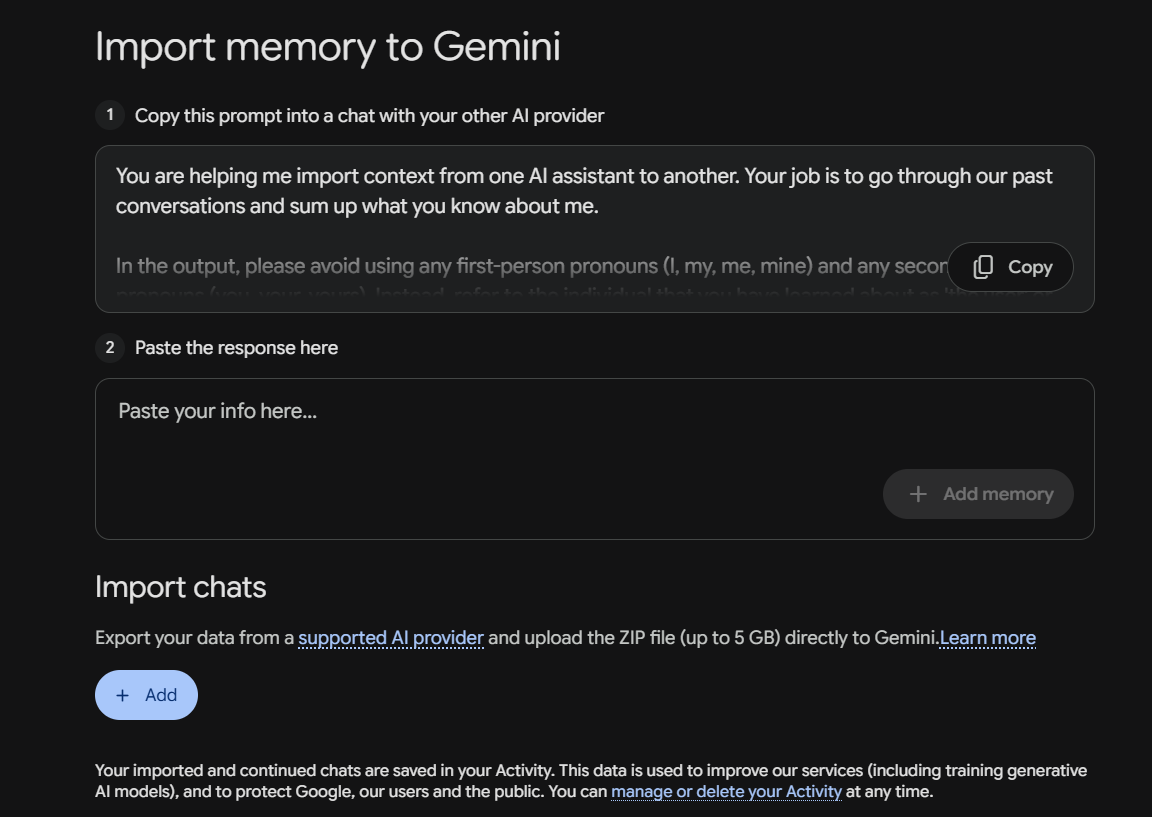
Transferring saved memory:
- Gemini gives you a prompt to paste into ChatGPT.
- ChatGPT responds with a de-personalized summary of what it has learned about you, organized into a handful of categories with supporting quotes and dates.
- Paste that summary back into Gemini.
- Gemini saves the relevant facts to your context there.
Transferring chat history:
- Export your ChatGPT data as a ZIP file (up to 5GB).
- Upload it directly into Gemini.
- Gemini parses your past conversation threads, organizes them, and lets you search and continue them inside Gemini.
A couple of limits worth knowing going in:
- The transfer is text only, so images and attached files get left behind.
- Whatever comes across lands in your Gemini Activity, and Google can use that data to improve its products and train future models unless you delete it afterward.
- The whole process is one-time. New memories you create in ChatGPT after running it do not show up in Gemini until you run it again.
For anything the import does not cover (Custom GPT behavior, Project instructions, personality tuning), you are back to doing it manually:
- Export your data from ChatGPT's official Settings → Data Controls, and locate
conversations.jsonorchat.html. - Convert it into something Gemini can actually reason over. Gemini does not meaningfully understand raw JSON at scale, so split it by project or topic and convert it to markdown or plain text. NotebookLM works well here since it treats large files as reference sources rather than live memory.
- Upload the converted files into Gemini chats and reference them explicitly in your prompts. For ongoing work, keep a summarized document instead of re-uploading raw chats each time.
This covers the gaps, but it is worth being honest about the trade-off: nothing here persists on its own. The context only exists for that session unless you reintroduce it later.
Method Two: Using MemoryPlugin
Between the native import and manual reuse, you can get most of what ChatGPT knows about you into Gemini. What neither one does is keep it current. The native import is one-time. Manual reuse is session by session. Every new decision, preference, or project detail you add in ChatGPT afterward has to be moved over by hand again.
MemoryPlugin is built to remove that step entirely. It works alongside your AI tools by adding a separate, persistent memory layer that operates outside any single model's native context window and Memory system. Rather than replacing each tool's automatic inference, MemoryPlugin lets you store information explicitly and retrieve it intentionally, no matter which AI you are using.
What it does across tools:
- One memory layer, multiple models: Your context lives in MemoryPlugin, not inside any single tool. Open ChatGPT, Claude, Gemini, or Grok; the same memories are available.
- No re-export: Sync your ChatGPT memories once. They stay current as you work. You do not repeat the native import cycle every time you create a new memory.
- Chat History across platforms: Import your ChatGPT history and search it in natural language. Pull relevant pieces into Gemini when you need them.
- Buckets stay consistent: Organize memories by project or client. The same bucket loads in whichever tool you happen to be using.
How to set it up:
- Import your chat history: if you want past conversations to be searchable. Open the extension panel, go to the Sync tab, select your platform, and start syncing.
- Connect your tools: Browser extension for ChatGPT, Claude, Gemini, Grok, and Perplexity, with 21+ AI tools supported overall. MCP server for Claude Desktop. TypingMind plugin. Custom GPT and API for direct integrations.
- Sync your ChatGPT memories: Open ChatGPT, go to Settings → Personalization → Manage Memories, and click the "Sync Memories" button with the MemoryPlugin logo. Wait a couple of minutes and keep the tab open. The sync is idempotent, so running it again will not create duplicates.
Once that's done, your memory stays platform-independent and keeps growing as you work, in ChatGPT, Gemini, or whatever you switch to next.
| Problem | Gemini's native import | MemoryPlugin |
|---|---|---|
| Moving what you already have | One-time, manual re-run each time | Synced once, stays current automatically |
| New facts added after the transfer | Stuck in ChatGPT until you repeat the import | Picked up and made available going forward |
| Organizing by project | Everything lands in one Activity feed | Buckets keep each project isolated |
| Working across more than two tools | Built for ChatGPT to Gemini specifically | Same memory available in ChatGPT, Gemini, Claude, and others |
With this, your context comes with you. When you open a different tool, your project constraints and preferences are already there.
Try MemoryPlugin. It is designed to keep your memory working after you switch tools.